 2:53
2:53सारांश. The Product element in GoHighLevel's email designer lets you embed product cards, including image, title, price, description, and a buy button, into any email template. You choose the layout, pick which products to display, and set the destination URL for the button. Templates built this way connect directly to workflow automations so product promotions can run without manual rebuilds each time.
स्टेप
Set up your products first
Go to Payments, then Products, and confirm each product has a title, price, image, and description before touching the email template.
Open the email template
Navigate to Marketing, Emails, Templates and open an existing template or create a new one.
Drag in the Product element
Find the Products element in the left panel and drag it into the email canvas. A placeholder appears until products are added.
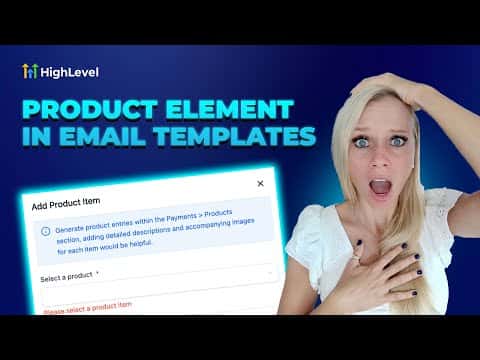
Add your products
Click 'Add item' in the left panel, select the product you want to feature, and confirm. The product card renders in the template immediately.
Choose a layout
Pick from layout options such as large featured, content left, content right, or column. Large featured works well for a single hero product.
Configure visible fields and button
Toggle title, description, price, and button on or off as needed. Set the button text and the destination URL where buyers land after clicking.
Add the template to a workflow
Once the template is saved, attach it to any workflow email action to automate your product promotion campaigns.
टिप्स
- If a product image or description does not appear, go back to Payments, edit the product, add the missing field, save, and refresh the template.
- Deleting and re-adding the Product element can resolve display issues faster than waiting for a cache refresh.