 5:53
5:53Summary. GoHighLevel appointment reminder campaigns send confirmation and reminder messages at intervals you define before an appointment. Each step uses a timing offset relative to the appointment date, such as 48 hours before or 2 hours before, and you can mix email, SMS, and other message types in any order. When a booking comes through the built-in calendar widget, a workflow trigger connects it to the campaign automatically. For appointments booked outside GoHighLevel, you can add the contact to the campaign manually and supply the appointment date.
What you will learn
- Build a multi-step reminder sequence with custom timing before the appointment
- Set each step to Send Before instead of the default Send After
- Disable Stop on Response so reminders keep firing even if the contact replies
- Connect the campaign to a calendar trigger for automatic enrollment
- Manually add a contact to the campaign with a custom appointment date when using third-party booking tools
Steps
Create the campaign and add a confirmation step
Go to Campaigns and create a new campaign. Add your first action as an immediate confirmation message (email or SMS). Set the timing to Send Immediately so it fires the moment an appointment is booked.
Add timed reminder steps using Send Before
Add a new step for each reminder you want to send. Set the timing offset (for example, 48 hours, 24 hours, 2 hours). On each step, change the direction from Send After to Send Before. This is the setting that keys the step to the appointment date rather than the enrollment date.
Disable Stop on Response in campaign settings
Open the Campaign Configuration tab and uncheck Stop on Response. If a contact replies to a reminder saying they will attend, you still want the subsequent reminders to go out. Leaving this on would stop the sequence on the first reply.
Attach a calendar trigger for auto-enrollment
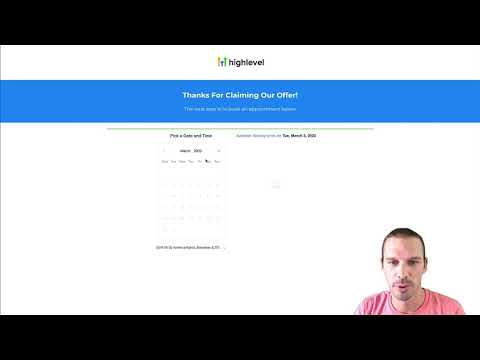
Go to Settings on the relevant calendar and open Triggers. Add a trigger that fires when an appointment is booked and confirmed. Set the action to Add to Campaign and choose your reminder campaign. Contacts will now enroll automatically when they book.
Enroll contacts manually for third-party bookings
Open the contact record in GoHighLevel. On the right side, find Active Campaigns and click the Add button. Choose the reminder campaign, then set the Event Start Date to the appointment date and time. Click Go, then Add. The campaign will use that date for all Send Before timing calculations.
Tips
- SMS tends to get higher open rates than email for appointment reminders. Consider using both for important appointments.
- You can add as many reminder steps as you want. A common pattern is confirmation, 48-hour reminder, 24-hour reminder, and 2-hour reminder.