Calendars & Booking
How to Embed a GoHighLevel Calendar on Any Page
By Marnix Geerkens. Published 2020-03-03. Updated 2026-06-02.
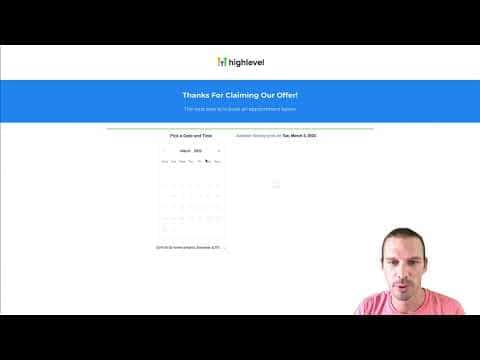
GoHighLevel provides an embed code for every calendar you create. Copy it from the Appointment Widgets section in Settings and paste it into any HTML editor to display the booking widget. If you are building a page inside GoHighLevel's funnel builder, you can skip the embed code entirely and use the native Calendar element instead.
Watch it, then build it
Get the full platform free for 30 days
That walkthrough runs on GoHighLevel. Start it free through RocketLauncher and you get 30 days instead of the usual 14, the whole platform unlocked, plus our setup help and a community of thousands of builders in 47+ countries.
30 days, not 14Full platform, nothing held backFree community and setup help
We earn a referral commission if you keep GoHighLevel after the trial. It never changes your price.
Summary. Embedding a GoHighLevel calendar lets visitors book appointments directly from your website, a landing page, or any HTML-capable page builder. The embed code sits inside Settings under Appointment Widgets and works on external platforms like WordPress. Inside GoHighLevel funnels, a dedicated Calendar element handles the same job without needing to paste code manually.
Related tutorials
Watch it, then build it
Get the full platform free for 30 days
30 days, not 14Full platform, nothing held backFree community and setup help
Frequently asked questions
Where do I find the embed code for my calendar?
Go to Settings, then Calendars, and click the widget or embed icon next to the calendar name.
Do I need the embed code to add a calendar to a GoHighLevel funnel page?
No. Use the built-in Calendar element in the funnel builder and pick your calendar from the dropdown.
Will the embed code work on a WordPress site?
Yes. Paste it into any HTML or custom code block and the booking widget will display.