RocketLauncher AI

Calendars & Booking

Create a GoHighLevel Calendar and Connect It to Google Calendar

By Marnix Geerkens. Published 2019-02-12. Updated 2026-06-02.

Setting up a GoHighLevel calendar takes a few minutes inside Settings. You name the calendar, choose slot durations, set your available days and times, and save. Then you connect your Google account through Integrations, go back to the calendar settings, and link your Google Calendar. From that point, booked appointments sync to Google automatically and the booking widget respects your Google availability.

Watch it, then build it

Get the full platform free for 30 days

That walkthrough runs on GoHighLevel. Start it free through RocketLauncher and you get 30 days instead of the usual 14, the whole platform unlocked, plus our setup help and a community of thousands of builders in 47+ countries.

30 days, not 14Full platform, nothing held backFree community and setup help

We earn a referral commission if you keep GoHighLevel after the trial. It never changes your price.

Summary. GoHighLevel calendars let you control appointment availability and capture bookings through a widget you can share or embed. Connecting your Google Calendar creates a two-way sync where new appointments push to Google and your existing Google events block out time so visitors only see genuinely open slots. The setup takes place across two sections: Settings for the calendar itself, and Integrations for the Google connection.

What you will learn

  • Create a new calendar and configure slot duration and available hours
  • Enable auto-confirm to push appointments directly to Google without a manual step
  • Connect your Google account through the Integrations panel
  • Link a specific Google Calendar to your GoHighLevel calendar
  • Retrieve the booking widget link to share or embed on a page

Steps

  1. Open Calendar Settings and create a new calendar

    Inside your GoHighLevel sub-account, go to Settings then Calendars. Click Add Calendar and give it a name. Set slot duration, choose which days of the week you want available, and adjust the start and end times for each day.

  2. Configure auto-confirm and notifications

    Auto-confirm pushes appointments straight to your linked calendar without requiring manual approval. New Appointment Alert Emails send you a notification each time someone books. Enable whichever options fit your workflow, then save the calendar.

  3. Connect your Google account

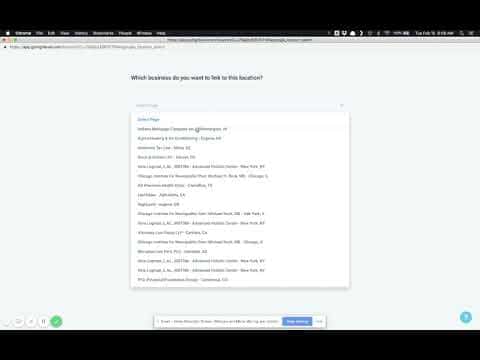
    Go to Settings then Integrations. Click Connect next to Google and choose your Google account. You can also link a Google Business Profile at this step if you manage one for the location.

  4. Link the Google Calendar to your GoHighLevel calendar

    Return to Settings then Calendars. Click Edit on the calendar you just created. At the bottom of the settings, you will now see a Google option in the calendar provider section. Select it and pick the specific Google Calendar you want to sync with from your list. Save the calendar.

  5. Get the booking widget and test

    Click the link icon next to your calendar name to copy the booking widget URL. Open it in a browser to confirm your available time slots appear correctly and match your Google Calendar availability.

Tips

  • If a day is not available for booking, simply toggle it off in the calendar settings rather than leaving the time fields empty.
  • Appointments booked through the widget appear in both GoHighLevel's scheduling view and your linked Google Calendar when auto-confirm is enabled.
Related tutorials

How to Integrate Calendly with HighLevel Calendars
How to Integrate Calendly with HighLevel Calendars6:07 · Calendars & Booking
How to Update Meeting Location with a Dynamic Zoom Link
How to Update Meeting Location with a Dynamic Zoom Link4:19 · Calendars & Booking
How to display multiple HighLevel Calendars on one page
How to display multiple HighLevel Calendars on one page2:31 · Calendars & Booking
Generate Dynamic Meeting Links With The HighLevel Zoom Integration
Generate Dynamic Meeting Links With The HighLevel Zoom Integration1:54 · Calendars & Booking
How to create an appointment reminder campaign
How to create an appointment reminder campaign5:53 · Calendars & Booking
How to create Round-Robin Calendars
How to create Round-Robin Calendars3:54 · Calendars & Booking

Watch it, then build it

Get the full platform free for 30 days

30 days, not 14Full platform, nothing held backFree community and setup help

Frequently asked questions

What does auto-confirm do?

It automatically pushes new bookings to your Google Calendar without waiting for manual confirmation.

Can I connect to more than one Google Calendar?

Each GoHighLevel calendar links to one Google Calendar. You can create multiple GoHighLevel calendars and link each to a different Google Calendar if needed.

Will existing Google Calendar events block booking slots?

Yes. After linking, GoHighLevel reads your Google Calendar and hides time slots that are already occupied.

How do I embed the booking widget on a website?

Go to Settings, then Calendars, and click the widget icon to get the embed code. Paste it into any HTML editor or page builder.

Back to all Calendars & Booking tutorials