 6:07
6:07Summary. The Calendly integration brings events from your Calendly account into GoHighLevel as appointments, automatically creating contact records for each attendee. You choose which Calendly calendars to sync during setup, and events booked after the integration goes live will appear in GoHighLevel and trigger any workflows you have configured. The sync is one-directional: Calendly sends data to GoHighLevel, but changes made inside GoHighLevel do not push back to Calendly.
What you will learn
- Connect your Calendly account to GoHighLevel through the Connections panel in Calendar Settings
- Select which Calendly event types to sync into the CRM
- Understand that only events booked after integration is active will be pulled in
- Automatically create contact records from Calendly attendee data
- Apply GoHighLevel workflow triggers to Calendly-synced appointments
- Remove or update synced calendars without losing the connection
Steps
Open Calendar Settings and navigate to Connections
Inside your GoHighLevel sub-account, click Calendars in the left menu, then click Calendar Settings at the top. Select the Connections tab and click Add New under the Calendars section.
Authorize the Calendly connection
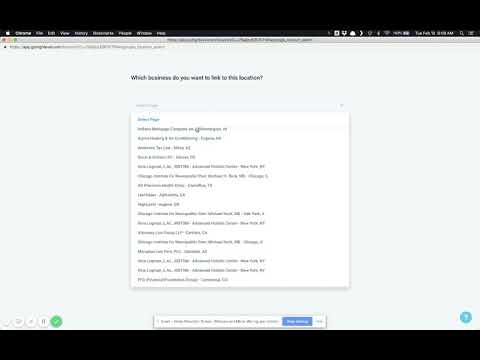
Find the Calendly option in the list and click Connect. A popup will request authorization. Approve it to link your Calendly account. Once connected, you will see a success message and a fetch prompt listing your available Calendly event types.
Select which calendars to sync
In the fetch popup, choose the Calendly event types you want GoHighLevel to monitor. Accept the terms and conditions, then click Save. Only the calendars you select here will sync events into the CRM.
Understand sync behavior and limitations
Events created in Calendly before this setup will not be imported. New events booked after the integration is active will sync and create contact records automatically. Changes made inside GoHighLevel to synced appointments are not pushed back to Calendly. To edit an event, you must do it inside Calendly.
Adjust or remove synced calendars
To deselect a Calendly calendar, go back to Connections, click Edit on the Calendly integration, and uncheck the event type you no longer want. The system will ask if you also want to remove events that were already synced. Choose based on your needs and save.
Apply workflows to Calendly appointments
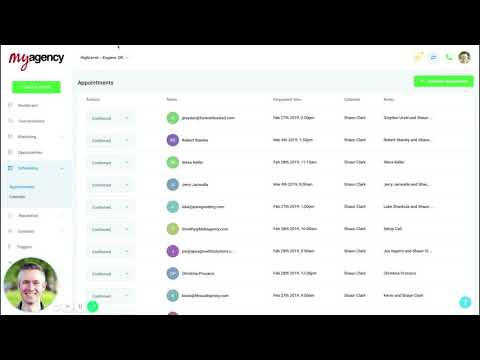
Calendly-synced appointments work with GoHighLevel workflows. Any workflow using an appointment trigger will fire for these events, allowing you to send confirmations, reminders, or follow-up sequences just as you would for natively booked appointments.
Tips
- The Calendly integration requires a paid Calendly plan (Standard, Teams, or Enterprise). It does not work on a free Calendly plan after a free trial expires.
- If you accidentally pull in a Calendly calendar you did not intend to sync, you can remove it and optionally delete the already-imported events through the Edit panel.