 2:52
2:52概要. GoHighLevel calendars let you control appointment availability and capture bookings through a widget you can share or embed. Connecting your Google Calendar creates a two-way sync where new appointments push to Google and your existing Google events block out time so visitors only see genuinely open slots. The setup takes place across two sections: Settings for the calendar itself, and Integrations for the Google connection.
学べること
- Create a new calendar and configure slot duration and available hours
- Enable auto-confirm to push appointments directly to Google without a manual step
- Connect your Google account through the Integrations panel
- Link a specific Google Calendar to your GoHighLevel calendar
- Retrieve the booking widget link to share or embed on a page
ステップ
Open Calendar Settings and create a new calendar
Inside your GoHighLevel sub-account, go to Settings then Calendars. Click Add Calendar and give it a name. Set slot duration, choose which days of the week you want available, and adjust the start and end times for each day.
Configure auto-confirm and notifications
Auto-confirm pushes appointments straight to your linked calendar without requiring manual approval. New Appointment Alert Emails send you a notification each time someone books. Enable whichever options fit your workflow, then save the calendar.
Connect your Google account
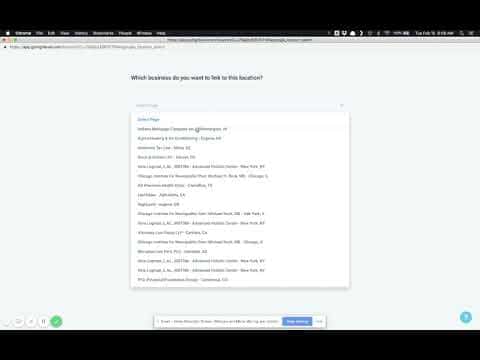
Go to Settings then Integrations. Click Connect next to Google and choose your Google account. You can also link a Google Business Profile at this step if you manage one for the location.
Link the Google Calendar to your GoHighLevel calendar
Return to Settings then Calendars. Click Edit on the calendar you just created. At the bottom of the settings, you will now see a Google option in the calendar provider section. Select it and pick the specific Google Calendar you want to sync with from your list. Save the calendar.
Get the booking widget and test
Click the link icon next to your calendar name to copy the booking widget URL. Open it in a browser to confirm your available time slots appear correctly and match your Google Calendar availability.
ヒント
- If a day is not available for booking, simply toggle it off in the calendar settings rather than leaving the time fields empty.
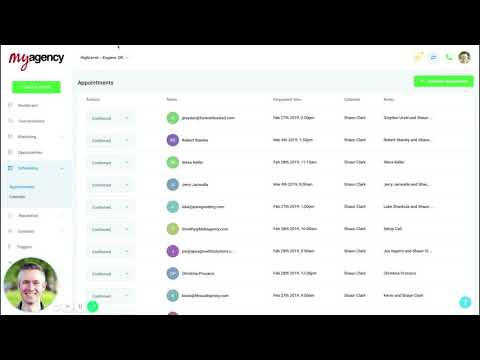
- Appointments booked through the widget appear in both GoHighLevel's scheduling view and your linked Google Calendar when auto-confirm is enabled.