RocketLauncher AI

Social Media

How to Create Carousel Ads in GoHighLevel's Facebook Ad Manager

By Marnix Geerkens. Published 2024-12-27. Updated 2026-06-02.

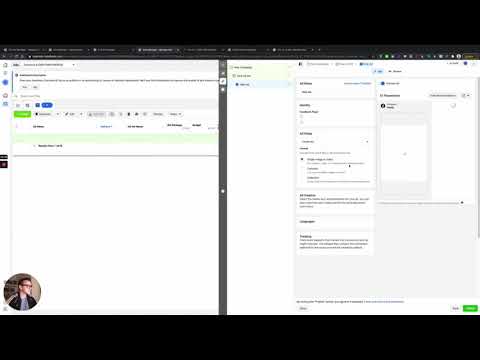
GoHighLevel's Facebook Ad Manager supports carousel ads, letting you upload multiple images or videos in a single campaign. Each slide gets its own headline and can include a description, and a live preview updates as you build. Carousel ads work on Facebook and Instagram feeds, Stories, and Reels, making them a practical format for mobile-first audiences who swipe through content.

Watch it, then build it

Get the full platform free for 30 days

That walkthrough runs on GoHighLevel. Start it free through RocketLauncher and you get 30 days instead of the usual 14, the whole platform unlocked, plus our setup help and a community of thousands of builders in 47+ countries.

30 days, not 14Full platform, nothing held backFree community and setup help

We earn a referral commission if you keep GoHighLevel after the trial. It never changes your price.

Summary. Carousel ads in GoHighLevel's Ad Manager let you combine multiple images or videos into one scrollable Facebook or Instagram ad, with individual headlines per slide. The setup follows the same campaign flow as single-image ads, with the only difference being the media type selection and the per-slide content fields. Once you have uploaded your media and written your headlines, the rest of the campaign flow (budget, audience, review, publish) works identically to any other ad type.

Steps

  1. Create a new campaign in Ad Manager

    Open the sub-account, go to Marketing then Ad Manager, and click Create Campaign. For carousels you will start from scratch rather than using a template, since the template library is optimized for single-image formats.

  2. Complete the campaign basics

    Choose your objective, attach a lead form or button, set your ad category and placements, and write your ad text. These fields are the same for all ad types.

  3. Select Carousel as the media type

    At the bottom of the ad content section, find the Media Type field. Switch from Single to Carousel. A slot for uploading multiple files appears.

  4. Upload your images or videos

    Click Upload Media and select all the files you want in the carousel. GoHighLevel supports multiple images and videos in one upload. The slides will appear in a row with a preview panel on the right.

Related tutorials

Facebook Integration Step by Step
Facebook Integration Step by Step11:06 · Social Media
Merge Facebook Messenger Contacts With Lead Ad Contacts In HighLevel
Merge Facebook Messenger Contacts With Lead Ad Contacts In HighLevel1:33 · Social Media
How to Bulk Schedule Social Media Posts with CSV Files in HighLevel
How to Bulk Schedule Social Media Posts with CSV Files in HighLevel8:02 · Social Media
Verifying root domains in Facebook also verifies its sub-domains
Verifying root domains in Facebook also verifies its sub-domains2:22 · Social Media
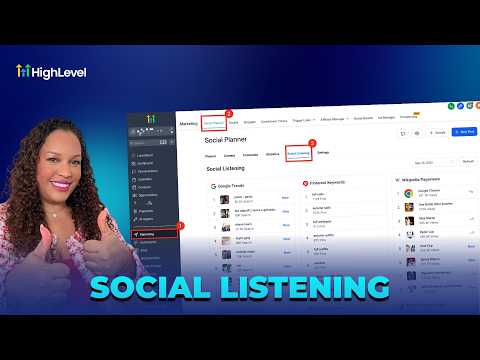
How To Stay Ahead of the Curve with HighLevel's Social Listening
How To Stay Ahead of the Curve with HighLevel's Social Listening3:19 · Social Media
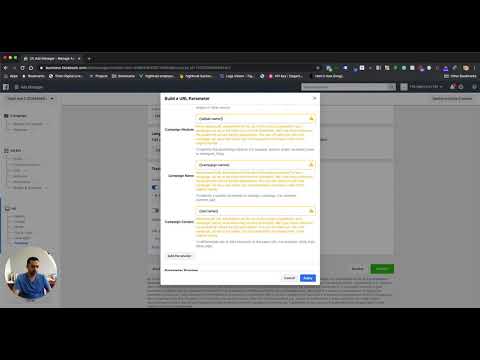
How to Setup Facebook UTM Parameters for Attribution Reporting
How to Setup Facebook UTM Parameters for Attribution Reporting2:16 · Social Media

Watch it, then build it

Get the full platform free for 30 days

30 days, not 14Full platform, nothing held backFree community and setup help

Frequently asked questions

Can I mix images and videos in the same carousel?

Yes, GoHighLevel's carousel builder accepts both image and video files in a single carousel.

Is headline text required for each carousel slide?

Yes, headline is marked as mandatory. Each slide must have one before you can proceed.

Can I reorder carousel slides after uploading?

Yes, use the drag-and-drop handle on the left side of each slide to rearrange them.

Back to all Social Media tutorials