RocketLauncher AI

Payments & Invoicing

How to Set Up Payment Dashboard Widgets and Reporting in GoHighLevel

By Marnix Geerkens. Published 2025-09-16. Updated 2026-06-02.

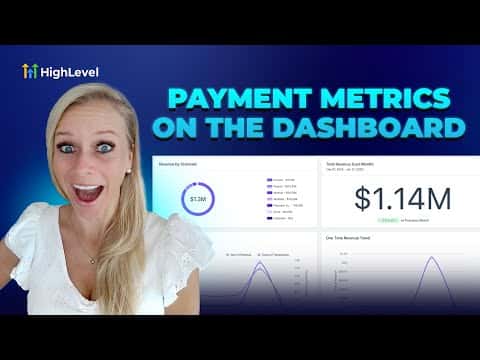
GoHighLevel dashboards support dedicated payment widgets that give you a visual read on revenue, failed charges, refunds, and subscription trends without leaving the platform. You pick a chart type, select the metric, filter by status or source, set a date range, and optionally compare against a previous period. Each widget is independent, so you can build a focused payments dashboard alongside your existing CRM view.

Watch it, then build it

Get the full platform free for 30 days

That walkthrough runs on GoHighLevel. Start it free through RocketLauncher and you get 30 days instead of the usual 14, the whole platform unlocked, plus our setup help and a community of thousands of builders in 47+ countries.

30 days, not 14Full platform, nothing held backFree community and setup help

We earn a referral commission if you keep GoHighLevel after the trial. It never changes your price.

Summary. Payment widgets in GoHighLevel turn raw transaction data into readable charts on a custom dashboard. You can track total revenue, recurring versus one-time trends, payment success and failure rates, coupon redemptions, invoice payment rates, and refunds, all with configurable date ranges and comparison periods. Building a dedicated payments dashboard gives you a quick financial snapshot without running manual reports.
Related tutorials

Configure Payment Providers by Channel!
Configure Payment Providers by Channel!1:30 · Payments & Invoicing
How To Import Stripe Products to HighLevel's SaaS Configurator
How To Import Stripe Products to HighLevel's SaaS Configurator6:27 · Payments & Invoicing
How to Set Up Bank Account Payments in Your Affiliate Manager
How to Set Up Bank Account Payments in Your Affiliate Manager3:03 · Payments & Invoicing
Did You Know You Can Offer Expiring Coupons for Limited Time Promos?
Did You Know You Can Offer Expiring Coupons for Limited Time Promos?2:08 · Payments & Invoicing
Did You Know You Can Route Payments to Different Bank Accounts in HighLevel?
Did You Know You Can Route Payments to Different Bank Accounts in HighLevel?1:31 · Payments & Invoicing
How to Integrate Stripe with GoKollab for Seamless Payments
How to Integrate Stripe with GoKollab for Seamless Payments1:51 · Payments & Invoicing

Watch it, then build it

Get the full platform free for 30 days

30 days, not 14Full platform, nothing held backFree community and setup help

Frequently asked questions

Where do I add payment widgets in GoHighLevel?

Go to Dashboards, create or edit a dashboard, click Add Widget, scroll to Payments.

Can I compare this month's revenue to last month in the same widget?

Yes. Set the date range and choose a comparison period in the widget settings.

Can I filter a widget to show only live-mode transactions?

Yes. Add a condition for payment mode equals live in the widget's conditions panel.

What chart types are available for payment widgets?

Numeric, donut, bar, horizontal bar, line, and table.

Back to all Payments & Invoicing tutorials