RocketLauncher AI

Payments & Invoicing

How to Integrate Stripe with GoHighLevel

By Marnix Geerkens. Published 2023-05-30. Updated 2026-06-02.

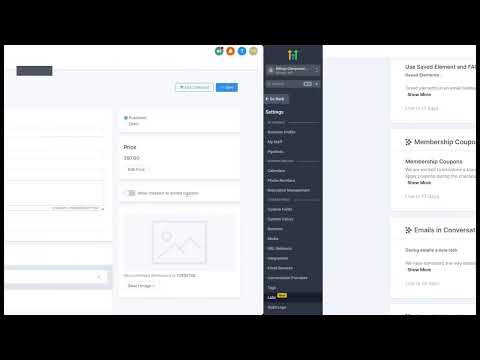
GoHighLevel gives you two ways to connect Stripe. The quickest is through the Launchpad that appears when you first log in, which shows a Stripe tile you can click to begin the OAuth connection. The second way is through Settings, then Integrations, where the same Stripe connection option is available under the Payments category. Both paths open the same Stripe login flow.

Watch it, then build it

Get the full platform free for 30 days

That walkthrough runs on GoHighLevel. Start it free through RocketLauncher and you get 30 days instead of the usual 14, the whole platform unlocked, plus our setup help and a community of thousands of builders in 47+ countries.

30 days, not 14Full platform, nothing held backFree community and setup help

We earn a referral commission if you keep GoHighLevel after the trial. It never changes your price.

Summary. Connecting Stripe to a GoHighLevel sub-account takes under two minutes and can be done from two places inside the platform. The Launchpad on the main dashboard shows a Stripe connect tile for new accounts, and the Settings, Integrations page exposes the same option for anyone who bypassed the Launchpad. After logging into Stripe through the pop-up window, the integration is active and ready for funnels, order forms, invoices, and products.

What you will learn

  • Connect Stripe from the GoHighLevel Launchpad
  • Connect Stripe from Settings and Integrations as an alternative path
  • Understand that both methods use the same Stripe OAuth login flow

Steps

  1. Connect via the Launchpad

    After logging into your GoHighLevel sub-account, look for the Launchpad on the main dashboard. Find the Stripe tile and click Connect. A new window opens where you log into your Stripe account and authorize the connection.

  2. Connect via Settings and Integrations

    Go to Settings in the left menu, then select Integrations. Scroll to the Stripe section and click the Connect with Stripe button. This opens the same Stripe login window as the Launchpad method.

  3. Complete the Stripe authorization

    Log into Stripe with your email and password in the pop-up window. Follow any additional prompts Stripe shows, such as two-factor verification, and then confirm the connection. GoHighLevel will confirm the integration is active.


Related tutorials

Import Existing Products from Stripe!
Import Existing Products from Stripe!2:25 · Payments & Invoicing
How To Build A Payment Page To Sign Up New Clients
How To Build A Payment Page To Sign Up New Clients7:49 · Payments & Invoicing
How To Create Coupons For Courses
How To Create Coupons For Courses3:44 · Payments & Invoicing
How to Connect and Use Square Payment Processor in HighLevel
How to Connect and Use Square Payment Processor in HighLevel2:24 · Payments & Invoicing
How to Collect Payments in a Form
How to Collect Payments in a Form2:36 · Payments & Invoicing
How to Create and Send Estimates Using HighLevel
How to Create and Send Estimates Using HighLevel7:10 · Payments & Invoicing

Watch it, then build it

Get the full platform free for 30 days

30 days, not 14Full platform, nothing held backFree community and setup help

Frequently asked questions

Is the Launchpad method different from the Integrations method?

No. Both open the same Stripe OAuth login and produce the same result.

Where is the Stripe integration in GoHighLevel settings?

Settings, then Integrations, in the Payments section.

Do I need a Stripe account before connecting?

Yes. Create and verify your Stripe account at stripe.com before connecting to GoHighLevel.

Can I connect Stripe to multiple sub-accounts?

Yes. Each sub-account has its own Stripe integration setting and can connect a separate Stripe account.

Back to all Payments & Invoicing tutorials