Memberships & Courses
How to Use the GoHighLevel Course Dashboard for Student Insights
By Marnix Geerkens. Published 2025-11-05. Updated 2026-06-02.
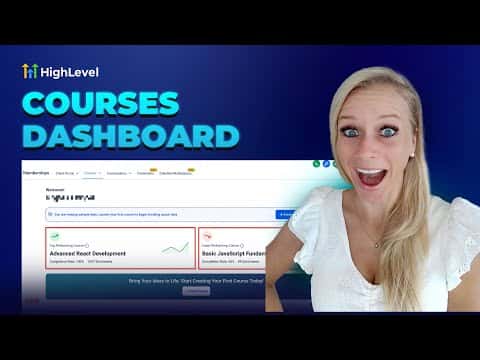
The GoHighLevel course dashboard gives you a real-time view of how students are progressing through your courses. Access it under Memberships, then Courses, then Dashboard. You can see completion rates, enrollment counts, revenue totals, average order values, and individual student progress all in one place. Data refreshes every six hours and covers the last 30 days by default.
Watch it, then build it
Get the full platform free for 30 days
That walkthrough runs on GoHighLevel. Start it free through RocketLauncher and you get 30 days instead of the usual 14, the whole platform unlocked, plus our setup help and a community of thousands of builders in 47+ countries.
30 days, not 14Full platform, nothing held backFree community and setup help
We earn a referral commission if you keep GoHighLevel after the trial. It never changes your price.
Summary. GoHighLevel's course dashboard centralizes the metrics that matter for online course businesses: which courses perform best, where students drop off, and how much revenue each course generates. Clicking into any course card shows individual student records with progress bars, start dates, last login, and login count. Revenue charts can be filtered by date range and broken down by offer, making it straightforward to compare months or spot which products are selling.
Steps
Open the course dashboard
In the left sidebar click Memberships, then Courses at the top, then select Dashboard from the submenu.
Review course performance cards
Each card shows a course name, total enrollments, and completion rate for the last 30 days. The best-performing course appears first.
Drill into individual student progress
Click any course card to see a table with each student's email, progress percentage, start date, last login, and total login count. Search by email to find a specific student quickly.

Related tutorials
Watch it, then build it
Get the full platform free for 30 days
30 days, not 14Full platform, nothing held backFree community and setup help
Frequently asked questions
How often does the course dashboard update?
It refreshes every six hours automatically.
Can I filter revenue data by date range?
Yes, use the date picker at the top to select last 30, 90, or 180 days, one year, or a custom range.
What should I do if no revenue data appears?
Revenue only shows after a paid transaction is processed through the system.