RocketLauncher AI

Memberships & Courses

How to Live Stream in GoHighLevel Community Groups

By Marnix Geerkens. Published 2025-11-24. Updated 2026-06-02.

GoHighLevel lets you go live directly inside any community group. Click Go Live from within the group, allow camera and microphone access, pick a channel to post the replay to, and choose between meeting room mode (interactive, like Zoom) or streaming software mode (broadcast using OBS or Streamyard with a stream key). Members get push notifications and can join, chat, raise hands, and react in real time.

Watch it, then build it

Get the full platform free for 30 days

That walkthrough runs on GoHighLevel. Start it free through RocketLauncher and you get 30 days instead of the usual 14, the whole platform unlocked, plus our setup help and a community of thousands of builders in 47+ countries.

30 days, not 14Full platform, nothing held backFree community and setup help

We earn a referral commission if you keep GoHighLevel after the trial. It never changes your price.

Summary. The Go Live feature inside GoHighLevel communities lets founders and coaches run group sessions, weekly standups, or coaching calls without switching to an external platform. Meeting room mode is fully interactive with participant cameras, chat, hand raises, and emoji reactions. Stream software mode outputs a stream key and server URL so you can pipe in a professional broadcast setup. After the session ends, the replay is saved to the group channel you selected so members can watch it on demand.

Steps

  1. Open your community group

    In the left sidebar click Memberships, then Communities, then Groups. Log in to the group you want to go live in.

  2. Click Go Live and grant permissions

    Click the Go Live button at the top of the group. When the browser asks for camera and microphone access, allow both.

  3. Choose a channel and schedule

    From the drop-down on the left, select which channel should receive the replay post. Choose to go live now or schedule for a later time.

  4. Select a streaming mode

    Pick Meeting Room for an interactive session with participant cameras and chat. Pick Streaming Software to get a stream key and server URL for OBS, Streamyard, or similar tools.

  5. Add a title and description, then go live

    Enter a session title and a short description. Enable notify members to trigger in-app and push notifications, then click Go Live.

Related tutorials

How To Utilize HighLevel's Course Dashboard for Detailed Student Insights
How To Utilize HighLevel's Course Dashboard for Detailed Student Insights4:23 · Memberships & Courses
Did You Know You Can Make More Money by Selling Your Courses to Your Community?
Did You Know You Can Make More Money by Selling Your Courses to Your Community?2:30 · Memberships & Courses
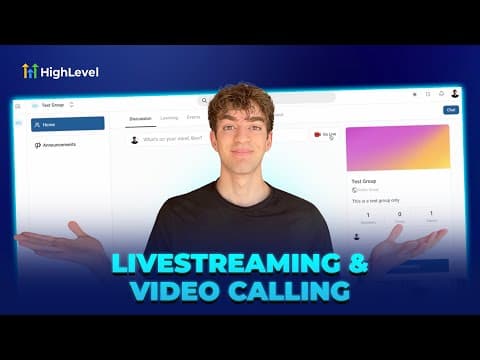
How To Host Livestreaming Webinars and Community Events in HighLevel
How To Host Livestreaming Webinars and Community Events in HighLevel2:02 · Memberships & Courses
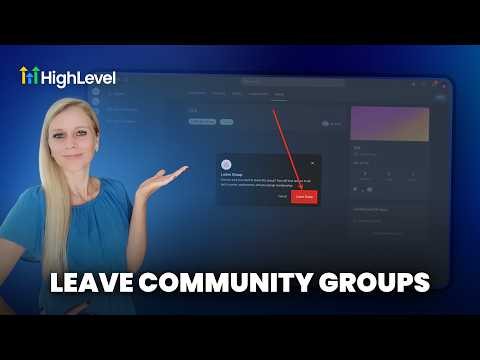
How To Leave a HighLevel Community Easily
How To Leave a HighLevel Community Easily1:15 · Memberships & Courses
How to Use the New Kollab App
How to Use the New Kollab App4:12 · Memberships & Courses
How To Create a Community In HighLevel
How To Create a Community In HighLevel3:10 · Memberships & Courses

Watch it, then build it

Get the full platform free for 30 days

30 days, not 14Full platform, nothing held backFree community and setup help

Frequently asked questions

Can participants turn on their cameras during a GoHighLevel live session?

Yes, in meeting room mode participants can enable their camera and microphone.

Where is the replay stored after a live session?

It is saved as a post in whichever group channel you selected before going live.

How do members know when a live session is starting?

Enable notify members and GoHighLevel sends in-app and push notifications automatically.

Back to all Memberships & Courses tutorials