RocketLauncher AI

Integrations & API

How to Integrate GoHighLevel with Zapier

By Marnix Geerkens. Published 2019-09-12. Updated 2026-06-02.

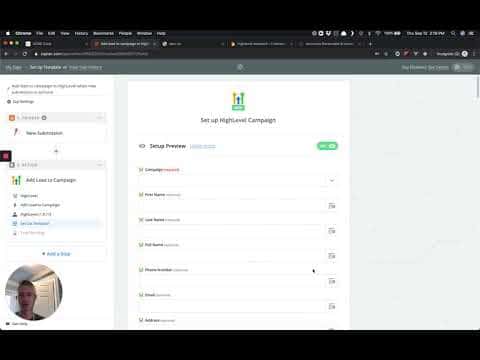
Connecting GoHighLevel to Zapier takes about five minutes. Find your API key inside your GoHighLevel location settings, paste it into the Zapier connection screen, then pick a trigger app, choose an action like Add Lead to Campaign, and map the contact fields. Enable the Zap and new submissions will flow into GoHighLevel automatically.

Watch it, then build it

Get the full platform free for 30 days

That walkthrough runs on GoHighLevel. Start it free through RocketLauncher and you get 30 days instead of the usual 14, the whole platform unlocked, plus our setup help and a community of thousands of builders in 47+ countries.

30 days, not 14Full platform, nothing held backFree community and setup help

We earn a referral commission if you keep GoHighLevel after the trial. It never changes your price.

Summary. This tutorial walks through connecting any trigger app in Zapier to GoHighLevel as the action destination. It covers locating the GoHighLevel API key inside location settings, authorizing the connection, selecting the right action type (add lead, add contact, stop campaigns, or manage opportunities), mapping data fields including custom fields and event dates, and testing the Zap before turning it on.

What you will learn

  • Where to find your GoHighLevel API key inside location settings
  • How to pick the right Zapier action for your use case
  • How to map contact fields from any trigger app into GoHighLevel
  • What the appointment-date field does and when to use it
  • How to test a Zap and confirm the lead landed in GoHighLevel

Steps

  1. Create a new Zap in Zapier

    Log in to Zapier and start a new Zap. Select the app you want to use as the trigger, for example a form tool or a CRM, and choose the event that will fire the Zap.

  2. Add GoHighLevel as the action app

    In the action step, search for HighLevel and select it from the list. You will be asked to choose what action to run.

  3. Choose the right action type

    The most common choice is Add Lead to Campaign, which creates a contact and enrolls them in a campaign. Other options include Add Contact, Stop All Campaigns for Lead, Add/Update Opportunity, and Add Task.

  4. Get your GoHighLevel API key

    Inside GoHighLevel, switch to the sub-account (location) you want to connect. Go to Settings, then scroll down to find the API Key field under company settings. Copy that key.

  5. Authorize the GoHighLevel connection

    Back in Zapier, click Connect an Account, paste your API key, and click Save. Zapier will confirm the connection and load your campaigns and custom fields from that location.

  6. Map contact fields

    Select the campaign you want to enroll leads in. Then map the trigger data (name, email, phone, and any custom fields) to the corresponding GoHighLevel fields. If you are using an appointment-based campaign, pass the appointment date into the event date field.

  7. Test and activate

    Click Continue, then Send Test to GoHighLevel. Confirm the test contact appeared in the correct campaign. Turn the Zap on, and all future submissions will route automatically.

Tips

  • Use a sub-account API key, not an agency-level key, so data lands in the right location.
  • The event date field only matters for appointment-based campaigns. Leave it blank for standard drip campaigns.
  • Map custom fields to keep lead data clean inside the GoHighLevel CRM.
Related tutorials

How to Set Up Private Integrations in Your Account
How to Set Up Private Integrations in Your Account4:46 · Integrations & API
How To Sync HighLevel With Quickbooks
How To Sync HighLevel With Quickbooks1:27 · Integrations & API
How to Configure Brand System-Generated Links (API Domain)
How to Configure Brand System-Generated Links (API Domain)3:31 · Integrations & API
How to Integrate WooCommerce with GoHighLevel for Ecommerce Success
How to Integrate WooCommerce with GoHighLevel for Ecommerce Success2:34 · Integrations & API
How to Use Kajabi Course Migrator
How to Use Kajabi Course Migrator2:32 · Integrations & API
How to Use the New Printful Integration with HighLevel
How to Use the New Printful Integration with HighLevel7:29 · Integrations & API

Watch it, then build it

Get the full platform free for 30 days

30 days, not 14Full platform, nothing held backFree community and setup help

Frequently asked questions

Where do I find my GoHighLevel API key for Zapier?

Go to Settings inside your sub-account and scroll to the API Key section.

Can I use Zapier to add contacts without enrolling them in a campaign?

Yes. Choose the Add/Update Contact action instead of Add Lead to Campaign.

What does Stop All Campaigns for Lead do?

It removes the contact from every active campaign in that location immediately.

Do I need a paid Zapier plan to connect GoHighLevel?

The connection itself works on the free plan, but multi-step Zaps require a paid Zapier account.

Can I pass custom field data from my form into GoHighLevel?

Yes. Scroll down in the Zapier action step to see all custom fields available.

Back to all Integrations & API tutorials