Integrations & API
How to Integrate Printify with GoHighLevel
By Marnix Geerkens. Published 2026-01-21. Updated 2026-06-02.
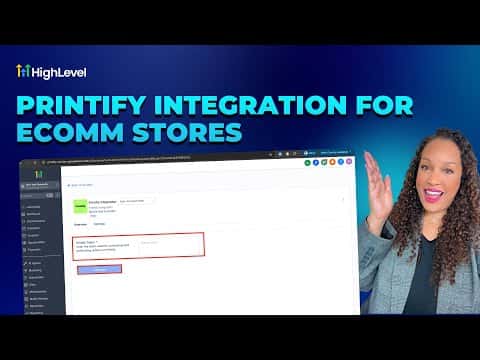
Connecting Printify to GoHighLevel links a print-on-demand store to the sub-account CRM and e-commerce tools. Go to Settings, then Integrations, find Printify, and follow the authorization steps. Once connected, products sync into your GoHighLevel store and orders route to Printify for fulfillment automatically.
Watch it, then build it
Get the full platform free for 30 days
That walkthrough runs on GoHighLevel. Start it free through RocketLauncher and you get 30 days instead of the usual 14, the whole platform unlocked, plus our setup help and a community of thousands of builders in 47+ countries.
30 days, not 14Full platform, nothing held backFree community and setup help
We earn a referral commission if you keep GoHighLevel after the trial. It never changes your price.
Summary. GoHighLevel's Printify integration allows sub-accounts to sell print-on-demand products without a separate storefront. After connecting through the Integrations page, Printify products appear inside the GoHighLevel e-commerce section. Orders placed by customers flow to Printify for production and shipping, while contact and order data stays inside the GoHighLevel CRM for follow-up and automation.

Related tutorials
Watch it, then build it
Get the full platform free for 30 days
30 days, not 14Full platform, nothing held backFree community and setup help
Frequently asked questions
Where do I find the Printify integration inside GoHighLevel?
Go to Settings, then Integrations, and look for Printify in the list.
Is Printify similar to Printful in how it connects to GoHighLevel?
Yes. Both are print-on-demand services that connect through the Integrations section.
Do I need an existing Printify account before connecting?
Yes. Create and log in to your Printify account before starting the integration.