RocketLauncher AI

Calendars & Booking

How to Set Up Appointment Reminders and Confirmations in GoHighLevel

By Marnix Geerkens. Published 2025-11-13. Updated 2026-06-02.

GoHighLevel sends appointment notifications through email, SMS, in-app alerts, and WhatsApp. Each calendar has its own notification settings covering confirmations, reminders, rescheduling, and cancellations. Turn on the channels you need, pick who receives each message (the contact, the assigned team member, or additional addresses), and customize the copy or leave the default template in place.

Watch it, then build it

Get the full platform free for 30 days

That walkthrough runs on GoHighLevel. Start it free through RocketLauncher and you get 30 days instead of the usual 14, the whole platform unlocked, plus our setup help and a community of thousands of builders in 47+ countries.

30 days, not 14Full platform, nothing held backFree community and setup help

We earn a referral commission if you keep GoHighLevel after the trial. It never changes your price.

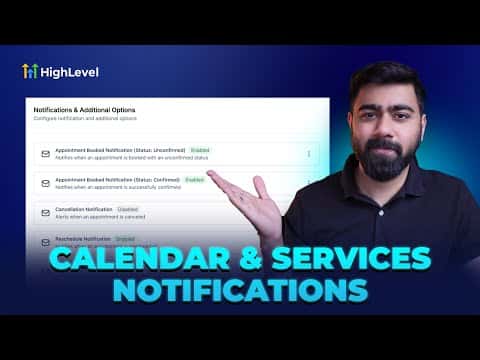
Summary. This tutorial walks through configuring appointment notifications inside a GoHighLevel calendar so clients receive automatic confirmations and reminders without any manual follow-up. It covers all four delivery channels, how to choose recipients, how to edit message text with custom values, and how to set reminder timing relative to the appointment. The calendar's notification panel shows at a glance which events are active.

Steps

  1. Open calendar notifications

    Go to Calendars, find the calendar to update, click Edit, then scroll to Notifications and Additional Options.

  2. Choose an appointment event

    Click one of the listed events: Booked (unconfirmed), Confirmed, Cancellation, Reschedule, Reminder, or Follow-up.

  3. Enable a channel

    Toggle on Email, In-App, SMS, or WhatsApp for that event. Each channel can be enabled independently.

  4. Select recipients

    Choose whether the notification goes to the contact, the assigned user, both, or additional email addresses or phone numbers.

  5. Set timing for reminders

    For reminder events, set how far in advance the message goes out, for example one hour or one day before the appointment.

  6. Customize the message (optional)

    The default templates work for most situations. If you need to personalize, edit the text directly or insert custom value tokens.

  7. Save and verify

    Click Save. Active channels show a green indicator on the event row so you can confirm everything is on at a glance.

Tips

  • Enable at least email and SMS for reminders. Both together reduce no-shows more than either alone.
  • WhatsApp notifications require an approved message template connected to a WhatsApp Business account.
  • The green and gray indicators in the notification panel make it easy to audit all events quickly.
Related tutorials

How To Create Service Calendars in HighLevel
How To Create Service Calendars in HighLevel4:33 · Calendars & Booking
Did You Know You Can Fill Your Calendar with Appointment from Instagram Replies?
Did You Know You Can Fill Your Calendar with Appointment from Instagram Replies?9:59 · Calendars & Booking
How To Easily Manage Rental Calendars in HighLevel
How To Easily Manage Rental Calendars in HighLevel4:07 · Calendars & Booking
Did You Know You Can Simplify Client Scheduling with Smart Calendars in HighLevel?
Did You Know You Can Simplify Client Scheduling with Smart Calendars in HighLevel?2:04 · Calendars & Booking
Did You Know HighLevel AI Can Book Appointments While You Sleep?
Did You Know HighLevel AI Can Book Appointments While You Sleep?3:42 · Calendars & Booking
Did You Know Marketing Agencies Can Automate Client Check Ins with HighLevel?
Did You Know Marketing Agencies Can Automate Client Check Ins with HighLevel?2:09 · Calendars & Booking

Watch it, then build it

Get the full platform free for 30 days

30 days, not 14Full platform, nothing held backFree community and setup help

Frequently asked questions

Can I send reminders at multiple intervals, such as 24 hours and 1 hour before?

Yes. Add multiple reminder entries, each with a different time setting.

Do I need separate automations or workflows to send these notifications?

No. The calendar notification panel handles this without any workflow setup.

What happens if a contact cancels and I have a cancellation notification enabled?

GoHighLevel fires the cancellation message automatically to whoever you selected as recipient.

Can the assigned team member receive SMS reminders too?

Yes. Toggle on the assigned user recipient inside the SMS channel settings.

Back to all Calendars & Booking tutorials