RocketLauncher AI

Social Media

How to Run Facebook Messenger Campaigns in GoHighLevel

By Marnix Geerkens. Published 2019-05-02. Updated 2026-06-02.

GoHighLevel supports Facebook Messenger as a full campaign channel alongside SMS and email. When someone responds to a Messenger ad, their reply triggers a GoHighLevel campaign automatically. You can send follow-up messages, include trigger links, and manage the ongoing conversation from the GoHighLevel inbox, all without switching to a separate tool.

Watch it, then build it

Get the full platform free for 30 days

That walkthrough runs on GoHighLevel. Start it free through RocketLauncher and you get 30 days instead of the usual 14, the whole platform unlocked, plus our setup help and a community of thousands of builders in 47+ countries.

30 days, not 14Full platform, nothing held backFree community and setup help

We earn a referral commission if you keep GoHighLevel after the trial. It never changes your price.

Summary. GoHighLevel's Facebook Messenger integration turns Messenger ad replies into automated campaign contacts. A quick reply button in a Messenger ad triggers the workflow, adding the contact to a sequence and sending follow-up messages automatically. Ongoing conversations appear in the GoHighLevel inbox under a dedicated Messenger tab, and contacts can be merged with existing lead records to unify communication history.

What you will learn

  • Use Facebook Messenger as a campaign channel in GoHighLevel
  • Trigger automated follow-up sequences from Messenger ad replies
  • Include trigger links inside Messenger messages to move contacts through a pipeline
  • Manage Messenger conversations from the GoHighLevel unified inbox
  • Merge Messenger contacts with existing lead profiles to avoid duplicates

Steps

  1. Run a Facebook Messenger ad with a quick reply

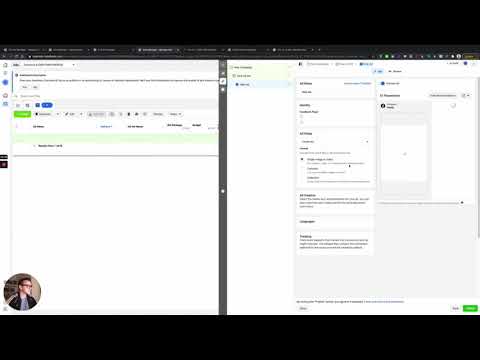
    In Meta Ads Manager, create a Messenger ad with a quick reply button. When a user taps that button, Messenger opens and their reply flows into GoHighLevel as a new contact or matches an existing one.

  2. Connect your Facebook Page to GoHighLevel

    In the sub-account, go to Settings then Integrations and connect your Facebook Page. This is what allows GoHighLevel to receive and send messages on behalf of that page.

  3. Create a campaign with a Messenger action

    Open the Campaigns section and create a new campaign. Add a Messenger action step, write the message body using contact merge fields, and include any trigger links you want to use for tracking clicks or advancing pipeline stages.

  4. Add the contact to the campaign on reply

    Configure the campaign trigger so that when someone sends the initial Messenger reply from the ad, they are added to the campaign automatically. The first message in the campaign goes out immediately.

  5. Reply manually from the GoHighLevel inbox

    In Conversations, click the Messenger tab on the contact record to send one-off replies. The contact receives your message in their Facebook Messenger, and their reply comes back into GoHighLevel in real time.

  6. Merge Messenger contacts with existing records

    If a Messenger contact is a duplicate of an existing lead (someone who previously submitted a form), open the contact and use the merge option to combine the records. This preserves the full history in one place.

Tips

  • Keep the first Messenger message short and include one clear question or action. Long opener messages reduce engagement.
  • Trigger links inside Messenger messages work the same way as in SMS campaigns, so you can use them to tag contacts or move them to pipeline stages.
  • The 24-hour messaging window is a Facebook rule. Automated messages must go out within 24 hours of the last user message or they will not be delivered.
Related tutorials

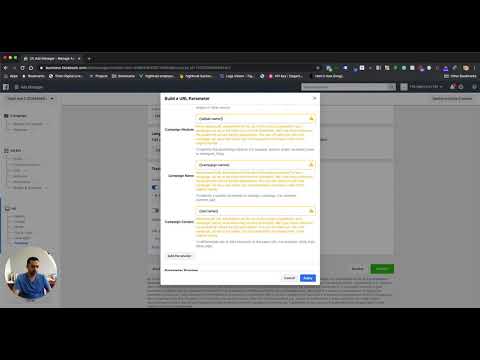
How to Setup Facebook UTM Parameters for Attribution Reporting
How to Setup Facebook UTM Parameters for Attribution Reporting2:16 · Social Media
How to use the Facebook Conversion API
How to use the Facebook Conversion API5:26 · Social Media
Verifying root domains in Facebook also verifies its sub-domains
Verifying root domains in Facebook also verifies its sub-domains2:22 · Social Media
Merge Facebook Messenger Contacts With Lead Ad Contacts In HighLevel
Merge Facebook Messenger Contacts With Lead Ad Contacts In HighLevel1:33 · Social Media
Facebook Integration Step by Step
Facebook Integration Step by Step11:06 · Social Media
How to Design Engaging Carousel Ads for Social Media
How to Design Engaging Carousel Ads for Social Media3:18 · Social Media

Watch it, then build it

Get the full platform free for 30 days

30 days, not 14Full platform, nothing held backFree community and setup help

Frequently asked questions

Does GoHighLevel treat Messenger like a normal campaign channel?

Yes, Messenger actions work alongside SMS and email inside the same campaign builder.

Can I see Messenger conversations in the unified inbox?

Yes, there is a dedicated Messenger tab inside each contact's conversation view.

What happens if the Messenger contact does not have an email on file?

GoHighLevel creates the contact with just the name from Messenger. You can add email and phone later.

Can trigger links work inside Messenger messages?

Yes, paste a trigger link into the Messenger message body the same way you would in an SMS.

What is the 24-hour messaging window?

Facebook only allows automated Messenger replies within 24 hours of the last user message.

Back to all Social Media tutorials