 2:22
2:22सारांश. Facebook's iOS 14 domain verification requirement applies at the root domain level. Verifying example.com in Business Manager automatically covers subdomains like funnel.example.com, so there is no need to repeat the verification process for each subdomain you use in GoHighLevel funnels. The key additional step is adding the subdomain to your pixel's traffic permissions so Facebook allows it to send conversion data.
आप क्या सीखेंगे
- Understand that root domain verification covers all subdomains in Facebook
- Add subdomains to pixel traffic permissions separately from domain verification
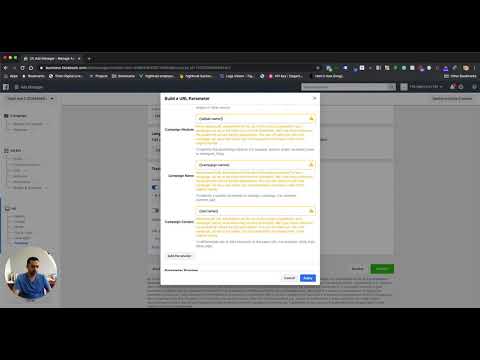
- Confirm that your ad's website URL matches the verified domain to avoid errors
- Avoid the domain mismatch error that blocks conversion event assignment
स्टेप
Verify the root domain in Facebook Business Manager
In Business Manager, go to Brand Safety then Domains. Add your root domain (for example, yourdomain.com) and follow the DNS or meta-tag verification steps. You only need to do this once.
Open your pixel in Events Manager
In Meta Events Manager, select your pixel and go to the Traffic Permissions section.
Add both root and subdomain to traffic permissions
Click Edit Traffic Permissions and add both your root domain and any subdomains you use for GoHighLevel funnels. Facebook will confirm that these domains are allowed to send pixel data, and it will note that subdomains of a verified root are covered.
Set the correct domain when assigning conversion events
When you assign conversion events to your verified domain, make sure the domain you select matches what is in the ad's website URL field. A mismatch triggers an error and blocks event assignment.
टिप्स
- The traffic permissions step and the domain verification step are separate. Both are needed for iOS 14 compliance to work correctly.
- If your ad's website URL uses a subdomain, pick that subdomain in the conversion event domain selector, not the root. Facebook checks for an exact match.