 8:58
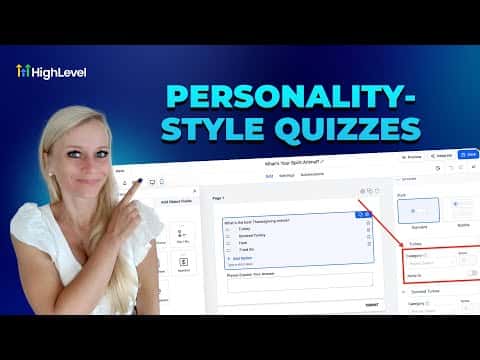
8:58सारांश. GoHighLevel's quiz builder supports category-based scoring so you can build personality assessments that output a type, not just a number. Each multiple-choice option gets assigned to one of your custom categories and receives a score. The results page uses quiz tags to show the highest or lowest category name and score dynamically, giving every respondent a result that feels tailored to their answers. Coaches, course creators, and consultants use this format to personalize their approach before the first conversation.
स्टेप
Open the quiz builder and add a multiple-choice element
Go to Sites, then Quizzes, then Builder. Create a new quiz or open an existing one. Drag a Multiple Choice element onto the first page.
Create your categories
Click the Category button in the top left of the builder, or click the dropdown on any answer option and select Add New Category. Name each category to match the personality types you want to identify, such as Directive, Strategic, Supportive, and Visionary.
Write questions and assign categories to each answer
Click an answer option to open its settings. Select the category it represents from the dropdown, then set a point value. Assign a different point value to each category so scores are distinct across respondents.
Repeat for additional questions
Add new pages and repeat the same process. Each question should offer one answer per category so the scoring remains consistent.
Save and configure the results page
Click Save, then go to Settings and select Edit Results Page. Toggle sections on or off using the eye icon.
Add quiz tags to personalize the result
In the results page editor, insert quiz tags such as highest category name and highest category score to display a dynamic, personalized outcome for each respondent.