 5:02
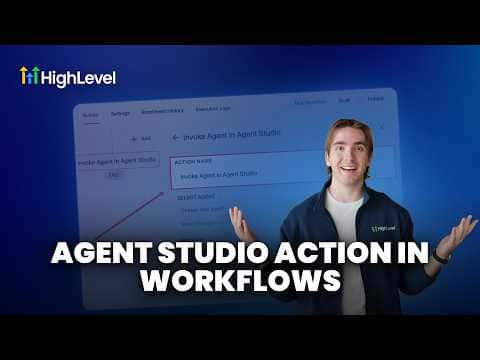
5:02Resumen. GoHighLevel's Invoke Agent workflow action connects Agent Studio agents directly to your automations. The agent must have its trigger set to Workflows and be promoted to production before it shows up in the action's selector. From there you can send a message, add attachments, or use a dynamic agent ID pulled from an inbound webhook or custom field.
Pasos
Set the agent trigger to Workflows in Agent Studio
Open the agent in Agent Studio, click the trigger node, and change the trigger type to Workflows. Agents with other trigger types will not appear in the Invoke Agent selector.
Publish and promote the agent to production
Click Publish in Agent Studio, then click Promote to Production. Agents in draft status are not accessible from automations.
Add the Invoke Agent action to your workflow
In the workflow builder, add a new action, find Invoke Agent, and select your published agent from the dropdown.
Optionally pass a message or attachments
The message and attachment fields are not required. Use them when the agent needs an initial input, a file reference, or a dynamic ID sourced from an earlier workflow step.