Getting Started & General

How to Create and Share Public Documents and Contracts in GoHighLevel

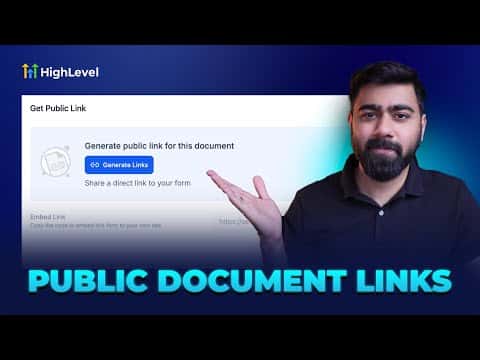
GoHighLevel lets you build signable contracts and share them via a public link, removing the need for a separate e-signature platform. Go to Payments, then Documents and Contracts, and create a public document. Add text, signature, name, and date fields, publish the document, and share the generated link with anyone who needs to sign.

Actualizado el 2 de junio de 2026

4:06

Resumen. GoHighLevel's public document feature handles online contract signing without third-party tools. You build the document in a drag-and-drop editor, add the fields you want contacts to fill in (name, signature, date), then publish to generate a shareable URL. Anyone who opens the link fills in their details and signs. All completed responses appear in the Public Documents tab under Documents and Contracts.

Pasos

  1. Open the template editor

    Go to Payments in the left sidebar, select Documents and Contracts, then click Templates. Hit New and choose Create Public Document.

  2. Add content and fields

    Drag text blocks for your contract copy, then drag in a name field, a signature field, and a date field. Set each field to be filled by the contact.

  3. Publish and copy the link

    Name the document, save it, then click Publish. GoHighLevel generates a public URL you can copy and share with customers.

Preguntas frecuentes

Where do completed signatures appear?

Under Documents and Contracts, open the Public Documents tab to see all responses.

Can the same link be used by multiple signers?

Yes, the public link is accessible to anyone you share it with.

Constrúyelo con gente que ya lo hizo.

Únete a la comunidad gratis: llamadas en vivo cada semana, un curso para empezar y gente que construye en tu idioma.

Únete gratis en Skool