Calendars & Booking

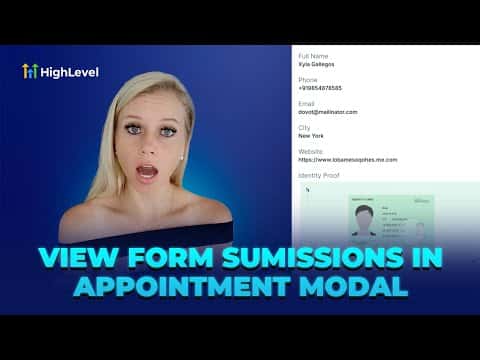
How to View Custom Form Submissions Inside the GoHighLevel Appointment Modal

When a booking includes a custom intake form, the responses are viewable directly inside the appointment details panel. Open the calendar view, click the appointment, and select the form submissions icon in the sidebar. All fields from the intake form appear there, including file uploads and digital signatures, without navigating away from the calendar.

Atualizado em 2 de junho de 2026

1:59

Resumo. This short walkthrough explains how to access custom form data collected during appointment booking through the GoHighLevel calendar view. Rather than switching to the contacts area or a separate form results page, the appointment modal provides a dedicated form submissions tab that surfaces all intake answers in one place. This is useful for any booking that requires pre-call preparation based on what the client submitted.

Perguntas frequentes

Does this work with the standard name, email, and phone form?

No. Standard fields appear in the contact record. Custom intake forms are required.

Can I see file uploads and digital signatures in the modal?

Yes. Uploaded files and signatures appear when you scroll through the form submissions tab.

Where do I attach a custom form to a calendar?

In the calendar's Advanced Settings under Forms and Confirmation.

Crie com quem já criou.

Entre na comunidade gratuita: lives semanais, um curso para começar e criadores no seu idioma.

Entre de graça no Skool