 3:42
3:42Resumo. This overview explains how to deploy a GoHighLevel voice AI agent as an always-on receptionist that books appointments from phone calls. It walks through creating a calendar, selecting or building an AI agent, training it with a knowledge base, writing the bot prompt, adding bot actions like SMS sends or call transfers, and assigning a phone number with working hours. The same agent can be copied across multiple client accounts.
Passos
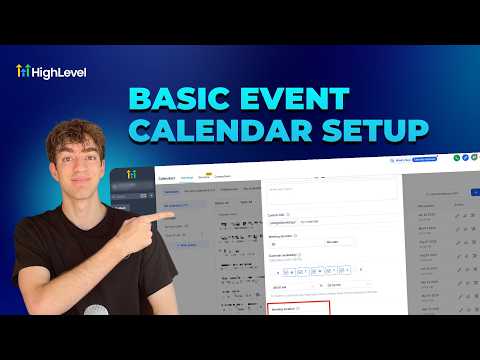
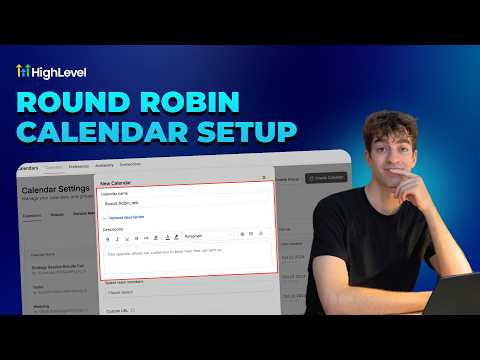
Create the calendar
Go to Settings, then Calendars, click New Calendar, choose the calendar type, set availability, and save.
Open Voice AI Agents
Still in Settings, find Voice AI Agents and click Create Agent. Browse the marketplace for a booking-focused template if you prefer a starting point.
Name and configure the agent
Give the agent a name and your business name, select a language, and choose a voice from the available options. Click Save Voice.
Add a knowledge base and prompt
Under Agent Goals, attach a knowledge base by scraping relevant web pages or connecting a document. Write a clear prompt that describes how the agent should handle calls and when to book versus transfer.
Set up bot actions
Add actions like sending an SMS confirmation or transferring to a live person after a threshold. These extend what the AI can do beyond basic conversation.
Assign a phone number and hours
Under Phone and Availability, choose a plan, map a phone number, and define working hours. Enable backup mode so the AI picks up calls that go unanswered after a few rings.