 3:03
3:03Resumo. This tutorial covers building a round robin calendar in GoHighLevel for teams that need to share appointment volume without manually assigning bookings. It walks through creating the calendar, selecting team members, previewing the booking widget, editing individual staff availability, setting priority levels so newer team members receive more bookings, and choosing between availability-based or equal distribution modes. Meeting location per team member is also configurable.
Passos
Create the round robin calendar
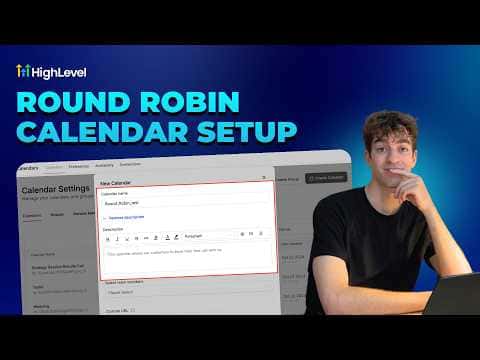
Go to Calendars, click Calendar Settings, then New Calendar, and select Round Robin.
Name it and add team members
Enter a calendar name, click each team member's profile to add them, set the meeting duration, and set a custom URL.
Confirm and preview
Click Confirm to create the calendar. Use Preview Booking Widget or copy a booking link to see what clients will see.
Edit individual staff availability
Go to the Staff section on the left, click the pencil icon next to a team member, open User Availability, adjust working hours, and save.
Choose a distribution method
Open the round robin calendar settings and go to Staff and Location. Set distribution to Optimized for Availability (first available gets the booking) or Optimized for Equal Distribution (spread evenly).
Set priority levels
When using availability-based distribution, assign High, Medium, or Low priority to each team member. High priority members receive more bookings.
Configure meeting locations per member
Expand each team member's settings to choose their meeting format: Zoom, Google Meet, phone, Microsoft Teams, or a physical address.
Dicas
- Use High priority for team members who are newer or need volume to build their pipeline.
- Preview the booking widget after saving to confirm slots show correctly before sharing the link with anyone.