मेन्यू
RocketLauncher

AI & Voice Agents

How to Use Conversation AI to Read Images and Files in GoHighLevel Live Chat

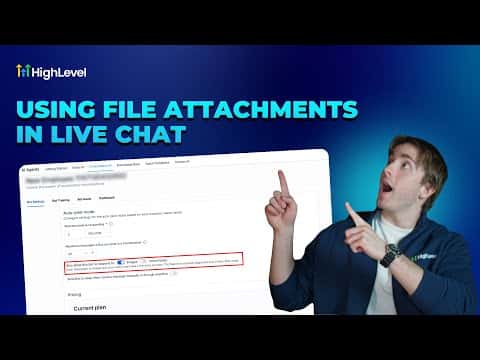
GoHighLevel's live chat widget accepts image and PDF file uploads from visitors by default, no setup required. When you pair live chat with a Conversation AI agent, you can turn on a single toggle that allows the bot to read those uploaded images and generate a reply based on what it sees. This makes the chat genuinely useful for support, quoting, and troubleshooting without a human in the loop.

अपडेट: 2 जून 2026

2:02

सारांश. GoHighLevel live chat widgets support file uploads out of the box, letting contacts send images and PDFs directly in conversation. With a Conversation AI agent assigned to live chat, enabling the 'allow this bot to respond to images' toggle gives the AI the ability to read incoming images and craft contextual replies. A practical use case is customer support where a contact screenshots an issue and the bot responds with a solution.


लोग जो सवाल पूछते हैं

Do I need to enable file uploads on my chat widget?

No, file uploads are active on all chat widgets by default.

Where do I turn on image reading for the Conversation AI bot?

In AI Agents, Conversation AI, select your agent, scroll down, and toggle on 'allow this bot to respond to images'.

What file types can contacts send in live chat?

Images and PDFs are supported in the live chat widget.

उन लोगों के साथ बनाएँ जो पहले बना चुके हैं।

फ्री कम्युनिटी से जुड़ें: हर हफ़्ते लाइव कॉल, एक स्टार्ट-हियर कोर्स और आपकी भाषा में बोलने वाले बिल्डर्स।

Skool पर फ्री जुड़ें