 7:34
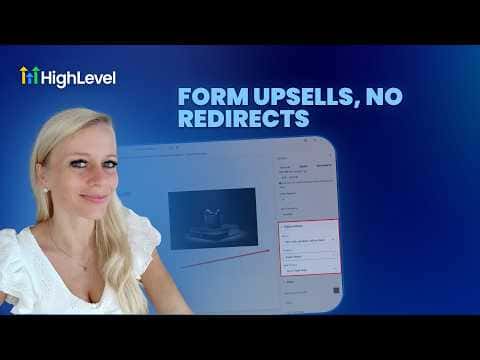
7:34Resumen. GoHighLevel's Forms builder includes a Sell Product element that collects payment information and generates the token needed for one-click upsells. You create the initial order form inside Forms, select your product, configure it as a main or bump product, then embed the form in a V2 funnel page. The upsell step sits on the next funnel page where buyers accept with one click, no re-entry of payment details required.
Pasos
Create a new form with the Sell Product element
Go to Forms, click Add New Form, start from scratch, and drag the Sell Product element into the form. This element captures card details and creates the one-click token.
Select your product
In the Sell Product settings on the right, choose Sell Products under payment type, then pick the product from the drop-down. You can also set it as a bump product if you want a small add-on rather than a primary offer.
Configure display and optional coupons
Toggle on the product description, image, and quantity fields you want buyers to see. Enable coupons if you plan to offer a discount.
Save and name the form
Rename the form clearly, then click Save in the top right so you can find it when adding it to a funnel.
Add the form to a V2 funnel step
Go to Sites, Funnels, open or create a V2 funnel, and drag the Form element onto the page. Select your saved form from the picker. Note: this does not work in V1 funnels.
Configure the button to advance to the next step
Click the button element below the form and set its action to go to the next step. Keep all upsell steps on the same domain so the payment token passes correctly.