Email

How to Export Email Marketing Data in GoHighLevel

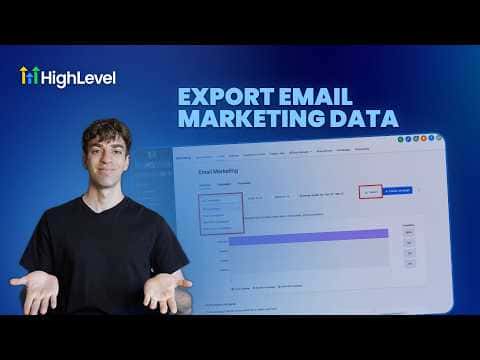
GoHighLevel stores all your email campaign performance data inside the platform, but clients and team members often need that data in a format they can work with outside the app. The export feature sends a CSV file directly to up to five email addresses, covering delivery, open, and click stats for any date range you choose. Past exports are saved and accessible any time.

Actualizado el 2 de junio de 2026

1:41

Resumen. The email data export in GoHighLevel lives under Marketing, Emails, Statistics. Select a date range, enter up to five recipient email addresses, and click Export. Each recipient gets an email with a download link for the CSV file. Past exports are logged under Recent Exports in both the Statistics view and the Campaigns settings, showing who ran the export and when, along with a direct download link.


Preguntas frecuentes

How many email addresses can receive an exported CSV at once?

Up to five recipients can be added to a single export request.

Where do recipients find the exported file?

They receive an email with a download button linking to the CSV file.

Where can I see a history of past exports?

Check Recent Exports under Statistics or inside Campaigns settings.

Constrúyelo con gente que ya lo hizo.

Únete a la comunidad gratis: llamadas en vivo cada semana, un curso para empezar y gente que construye en tu idioma.

Únete gratis en Skool