 2:00
2:00Resumen. When a contact replies to an email sent through GoHighLevel via Mailgun, that reply needs a routing rule in Mailgun to find its way back into your GoHighLevel Conversations. This tutorial shows how to check whether the required catch-all route exists in your Mailgun account, what it should look like, and two ways to fix it if the route is missing: manually creating it in the Mailgun receiving section, or letting GoHighLevel recreate it by saving your domain settings at the agency level.
Lo que aprenderás
- Why a Mailgun catch-all route is required for reply tracking in GoHighLevel
- How to find and inspect the route in Mailgun's Receiving section
- How to manually create the catch-all route if it is missing
- How to use GoHighLevel to recreate the route automatically
- What Mailgun plan level is required for inbound routing
Pasos
Check your Mailgun API key in GoHighLevel
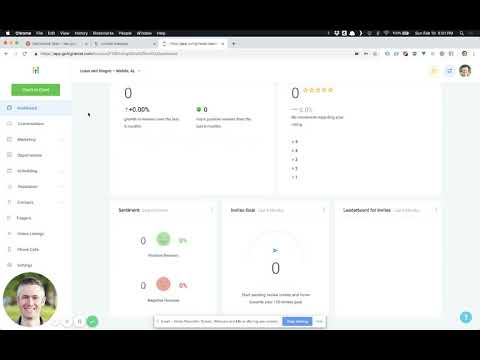
In your GoHighLevel agency account, go to Settings and open the Mailgun tab. Confirm your API key is entered and your sending domain is listed. If those are missing, replies cannot work regardless of routing.
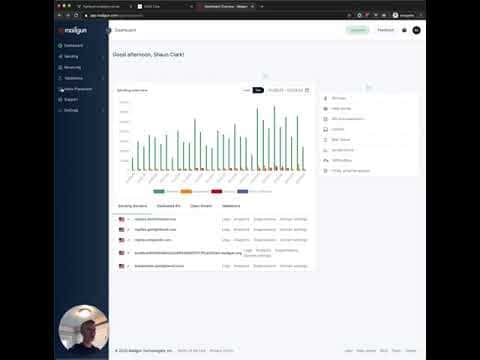
Log in to Mailgun and open Receiving
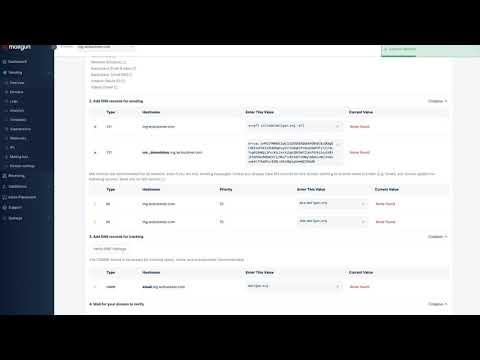
In Mailgun, click Receiving in the left sidebar. If you see an upgrade prompt instead of a route list, you need to upgrade to at least the minimum paid plan before inbound routing is available.
Look for the catch-all route
The route you need is a catch-all type that forwards to a GoHighLevel inbound URL. If the route is present and the forward address matches, your reply tracking should be working.
Option A: Create the route manually
If the route is missing, click Create Route, choose catch-all as the match type, paste the GoHighLevel forwarding URL into the Forward field, and save.
Option B: Let GoHighLevel recreate it
Go back to GoHighLevel agency settings, open the Mailgun tab, toggle between domains to trigger the Save button to appear, and hit Save. GoHighLevel will push the catch-all route back into Mailgun automatically.
Consejos
- After setting up the route, send a test email from a contact record and reply to it from your personal inbox. Check GoHighLevel Conversations to confirm the reply appears.