 2:53
2:53Resumen. Accidental unsubscribes used to mean losing a contact with no easy recovery path. GoHighLevel now shows a resubscribe option right on the unsubscribe confirmation page, so contacts who opted out by mistake can get back on the list instantly without any manual work on your end. This tutorial shows how to set up an email template with the unsubscribe custom value, send a test to walk through the opt-out and resubscribe flow yourself, and verify the contact record reflects both actions correctly.
Lo que aprenderás
- How to add the unsubscribe custom value to an email template
- What the unsubscribe confirmation page looks like and where the resubscribe link appears
- How GoHighLevel logs both the DND action and the resubscribe action on a contact record
- How to test the full flow before sending to real contacts
Pasos
Create or open an email template
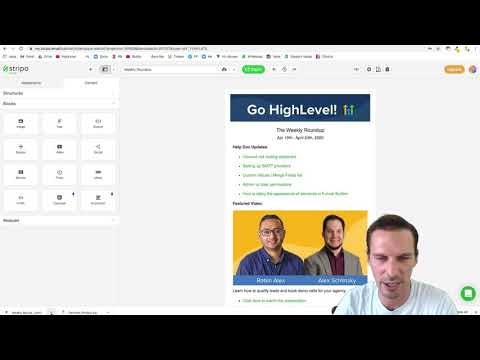
Go to Marketing, then Emails, and click New. Select an email marketing template and click Continue. The template opens in the editor.
Add the unsubscribe button
Scroll to the footer area of the template and drag a Button element into it. Click the button to open its settings. Under Link URL, click Custom Values, search for 'unsubscribe', and select Email Unsubscribe Link. This inserts the correct variable.
Label the button and save
Set the button label to 'Unsubscribe' and save the template.
Send a test campaign using this template
Create a new campaign, select the template, click Send or Schedule, add a test contact, and send. Open the email you receive.
Test the unsubscribe and resubscribe flow
Click the Unsubscribe button in the test email. Confirm the unsubscribe on the next page. Then click the resubscribe link that appears in the success message. You should see a 'Welcome back' confirmation.
Verify the contact record
In GoHighLevel, go to Contacts and open the test contact. Under the activity log or conversation history, confirm you can see DND enabled and then DND disabled. This confirms both actions were recorded correctly.
Consejos
- The contact may still appear in the unsubscribed list under campaign statistics for a period even after resubscribing. GoHighLevel notes this is a known display issue and the actual DND status on the contact record is what matters.