CRM, Contacts & Lead Gen

How to Export Company Data to CSV in GoHighLevel

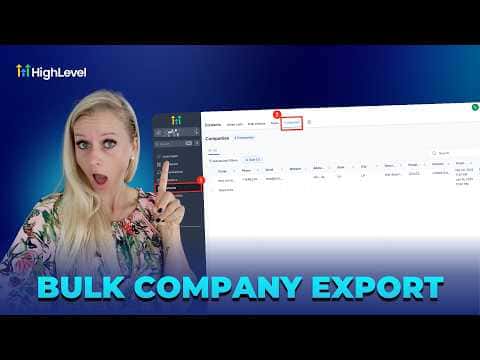
GoHighLevel lets you export your entire company list, or a filtered subset, to a CSV file in one click. Every company field and any custom fields you have added are included in the download. This makes it straightforward to share company records with stakeholders, run offline analysis, or keep a backup outside the platform.

Actualizado el 2 de junio de 2026

1:34

Resumen. From the Companies view inside Contacts, you can select all records at once or pick specific ones individually, then export using the Export button or the three-dot menu. A progress bar shows download status. If a team member cannot see the export option, a role permission for company access or CSV download is likely turned off.

Preguntas frecuentes

Are custom company fields included in the CSV export?

Yes. All standard and custom fields are exported together in the same file.

Why can't a team member see the Export button?

Their role likely lacks permission for company access or CSV download activities.

Can I export just a few companies instead of all of them?

Yes. Use the search box or advanced filters to narrow the list, then check specific records before exporting.

Constrúyelo con gente que ya lo hizo.

Únete a la comunidad gratis: llamadas en vivo cada semana, un curso para empezar y gente que construye en tu idioma.

Únete gratis en Skool