 5:15
5:15Resumen. GoHighLevel tags give you a lightweight way to classify contacts and drive automations without building complex filters every time. This tutorial walks through every place you can create a tag and every place you can put one to work, from the settings panel to workflow triggers and actions.
Lo que aprenderás
- Create tags from Settings, from a contact record, and from inside a workflow
- Tag an individual contact manually under the Actions menu
- Use a tag-added or tag-removed event as a workflow trigger
- Add or remove a contact tag as a workflow action
- Filter your contact list by tag to find specific groups fast
Pasos
Open Settings and find Tags
Inside your sub-account, go to Settings and scroll until you see the Tags section. This screen shows every tag currently in the account and a New Tag button in the upper right.
Create a tag from Settings
Click New Tag, type the label you want (for example, 'New Lead'), then click Create. The tag appears in the list immediately and is ready to use anywhere in the account.
Tag a contact directly from the contact record
Open any contact, find the Actions menu, and select Tags. Start typing the tag name to search existing tags or type a new name and click the plus sign next to it. Clicking the plus creates the tag and applies it to that contact in one step.
Create and use tags inside a workflow trigger
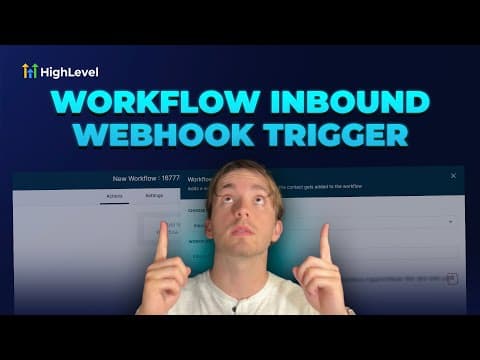
In a workflow, add a Contact Tag trigger. Choose 'Tag Added' or 'Tag Removed' as the filter. If the tag you need does not yet exist, type a new name in the tag field and click Add New Tag. The tag is created and the trigger is configured at the same time.
Add or remove a tag as a workflow action
Inside a workflow, add an action and search for 'tag'. You will see 'Add Contact Tag' and 'Remove Contact Tag'. Select the one you need, choose the tag from the list (or create a new one inline), and save the action.
Filter contacts by tag
In the Contacts section, use the filter options to show only contacts with a specific tag. This lets you quickly pull up a group for bulk actions, campaigns, or manual follow-up.
Consejos
- Name tags consistently from the start (for example, using prefixes like 'status-' or 'source-') to keep the list readable as it grows.
- Use the tag-removed trigger to build re-engagement workflows when a contact falls out of a specific segment.