 3:04
3:04Resumen. Ownership assignment in GoHighLevel connects a contact or opportunity to a specific team member. This tutorial covers every method for setting and clearing that assignment: clicking directly on a contact, opening an opportunity card, using a third-party automation tool, configuring campaign-level defaults, and removing owners automatically through workflow triggers.
Lo que aprenderás
- Manually assign a user to a contact from the contact record
- Assign an owner to an opportunity by opening the opportunity card
- Auto-assign owners through Zapier or Make when creating opportunities
- Set a default owner at the campaign level so every new contact is pre-assigned
- Remove an assigned user automatically using a workflow trigger
Pasos
Assign a user from the contact record
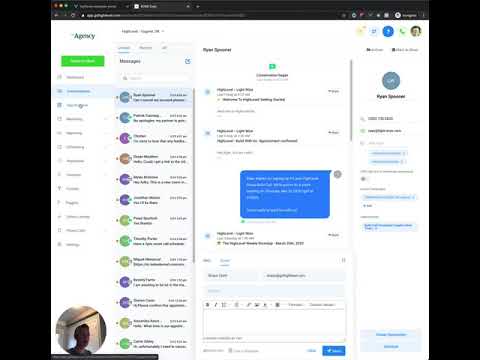
Go to Contacts, open a contact, and click Assign To at the top of the record. Select any user in your sub-account. That user becomes the contact's owner immediately.
Assign an owner from the opportunity card
In the pipeline view, click anywhere on an opportunity card except on the contact's name link. The opportunity card opens. Find the Assigned To or Owner field and select a team member. Their initials or photo will appear on the card in the pipeline view.
Auto-assign through a third-party automation
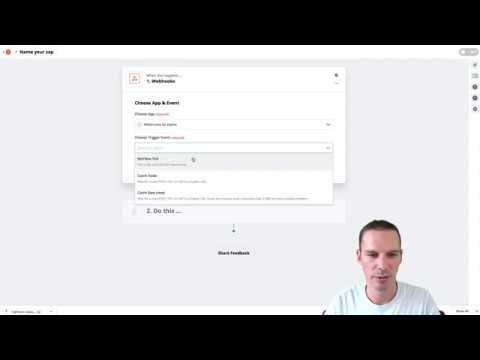
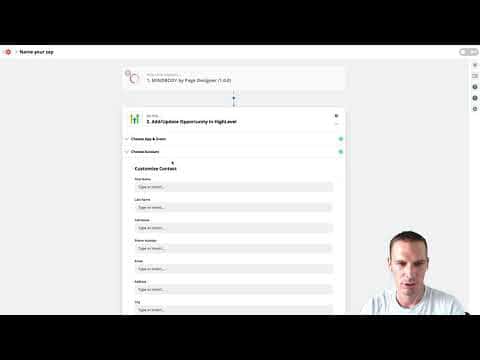
When using a tool like Zapier with the GoHighLevel Add/Update Opportunity action, you will see an Assign to User field. Select the team member there and every opportunity created through that automation will be pre-assigned to them.
Set a campaign-level default owner
Open Marketing, go to Campaigns, open a campaign, and go to Campaign Configuration. Add a user in the owner field. Any contact who enters that campaign will automatically be assigned to that user.
Remove an owner with a workflow trigger
In a workflow, add a trigger based on a pipeline stage change. Set the action to Remove Assigned User. When a deal moves to that stage, the system clears the owner automatically, which is useful for handoff points or closed-lost stages.
Consejos
- Click outside the contact name in the pipeline card to open the opportunity card. Clicking the name takes you to the contact record instead.
- Combining campaign-level assignment with remove-owner triggers lets you build clean handoff automations without manual steps.