 2:53
2:53Resumen. GoHighLevel added a setting that lets repeat-business accounts place the same contact in the same pipeline multiple times. This tutorial shows where to enable the setting, how to manually add a duplicate opportunity, and how to configure the workflow trigger that handles this automatically.
Lo que aprenderás
- Enable duplicate opportunities in sub-account Settings
- Manually add the same contact to a pipeline a second time
- Use the Force Create Opportunity option in workflow triggers
- Know when this feature is relevant (repeat clients, recurring services)
Pasos
Enable Allow Duplicate Opportunity in Settings
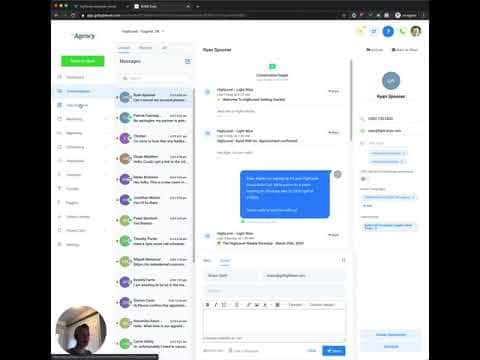
Go to Settings inside your sub-account and scroll to find the Allow Duplicate Opportunity toggle. Turn it on. This unlocks the ability to add the same contact to the same pipeline more than once.
Add a duplicate opportunity manually
Open the Opportunities pipeline view and click New. Search for the contact by name or email. Even if they already appear in the pipeline, GoHighLevel will now allow you to add them again. Fill in the opportunity name and click Add.
Configure the workflow trigger for automatic duplicate creation
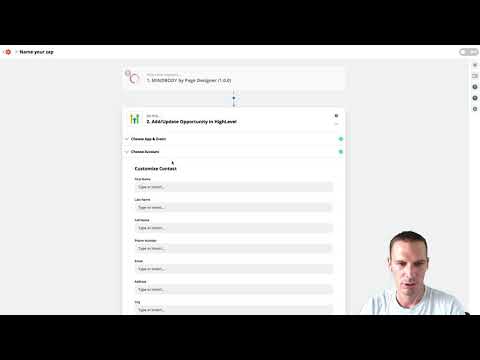
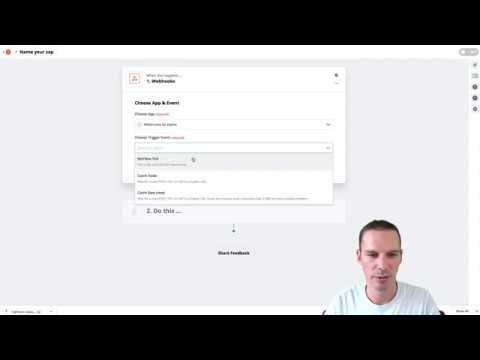
In a workflow, use the Add/Update Opportunity action. You will see a Force Create Opportunity toggle. Turn it on. When this is active, the workflow will always create a fresh opportunity for the contact rather than updating the existing one.
Consejos
- This feature is most useful for service businesses where a client comes back for a new project or purchase cycle.
- Both the pipeline card and the contact profile will show the same person appearing in multiple cards, which is expected behavior.