 1:21
1:21Resumo. GoHighLevel integrates with Google Business Profile messaging so that customer chats initiated from a Google search or Maps listing flow directly into your conversations inbox. Once connected, you can trigger automations when new messages arrive and customize the chat widget appearance from within the platform. Note that messaging activation can take up to 24 hours after the initial connection.
O que você vai aprender
- How to connect a Google account to GoHighLevel to enable Business Profile chat
- How to select and confirm the right Business Profile from the integration settings
- How to build a trigger that fires when a new Google Business Profile message arrives
- How to update the chat widget appearance after activation
- Why a 24-hour delay can occur before messaging goes live
Passos
Go to Settings > Integrations
Inside the sub-account, navigate to Settings and then Integrations. Find the Google section.
Connect a Google account
Click to connect a Google account that has admin access to the Google Business Profile you want to link.
Select the Business Profile
After authorizing the Google account, GoHighLevel prompts you to choose which Business Profile to connect. Select the correct one.
Confirm messaging is enabled
You will see a confirmation that messages are enabled. Activation can take up to 24 hours on Google's side.
Build a trigger for new messages
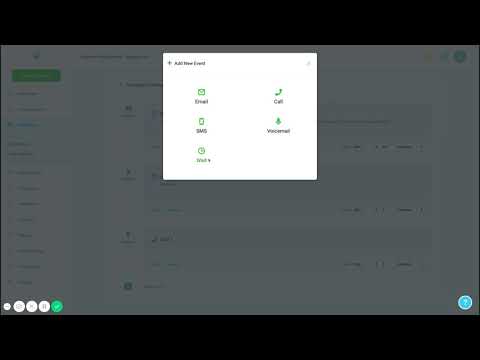
Go to Triggers (or Workflows), create a new trigger using the 'Customer Replied' event, and add a filter for Reply Channel set to Google Business Profile Messaging. Add whatever notification or action you need.
Customize chat widget settings
Return to Settings > Integrations, click Change Settings under the Google Business Profile section to adjust the chat display name and appearance.
Dicas
- If messaging does not appear active after 24 hours, disconnect and reconnect the Google account to force a refresh.
- Google does not currently allow changing the profile image in the chat widget from within GoHighLevel.