 2:35
2:35Resumo. This tutorial walks through building a two-step order form inside a GoHighLevel SaaS pricing funnel. It covers pulling Stripe plan IDs into funnel products, configuring the order form steps, and verifying the complete purchase flow from clicking a trial button through to receiving account credentials by email.
O que você vai aprender
- Copy Stripe plan IDs directly from the SaaS plan settings
- Add subscription products to a funnel step using pasted plan IDs
- Configure a two-step order form and trim unnecessary fields
- Connect pricing page buttons to the order form pop-up
- Confirm the end-to-end purchase and account provisioning flow
Passos
Copy your Stripe plan IDs
In your SaaS settings, click 'Show Stripe product details' next to each plan. Copy the plan ID for each pricing tier you want to sell.
Add products to your funnel step
Open your pricing funnel, go to the Products tab, and add a new product for each plan. Set the type to Subscription, then paste the Stripe plan ID into the plan field to pull in the correct tier. Give each product a clear name and save.
Insert a two-step order form element
In the funnel page editor, add a Two-Step Order Form element. Remove fields you do not need (such as shipping address) and label the two steps clearly, for example Contact Info and Payment.
Link your pricing buttons to the pop-up
Select each pricing button on the page and set its action to open the order form pop-up. Do this for every plan button so any click triggers the checkout flow.
Save and test the full purchase flow
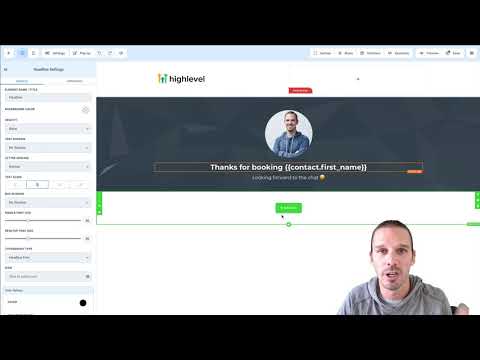
Save the page, then open a preview and act as a customer. Click a plan button, fill in contact details, choose a plan, enter a test card, and complete the order. Confirm the thank-you page appears and that a welcome email with login credentials arrives in the inbox.
Dicas
- Repeat the product setup for every pricing interval you offer (monthly and yearly) before testing
- Use Stripe test mode card numbers during setup so no real charge is made