 6:50
6:50Resumo. This tutorial covers creating a blog post inside GoHighLevel from scratch, including uploading a cover image, writing body content, setting categories, keywords, and author, and choosing between draft, published, or scheduled status. It also shows how to embed the blog post list element into a funnel or website page so posts appear automatically for visitors.
O que você vai aprender
- Navigate to the blog section under Sites and create a new post
- Add a cover image, title, and post description within character limits
- Use the rich editor to add text, images, videos, audio, and quotes
- Assign a category, keywords, and author to the post
- Publish immediately or schedule a future publish date
- Display posts on a funnel or website using the blog post list element
Passos
Open the blog section
From your GoHighLevel location, go to Sites and select Blogs. Click New Post to begin.
Set the title and cover image
Enter a title for your post. For the cover image, choose a file you have already uploaded to your media library. Add descriptive alt text to the image for accessibility and search.
Write a post description
Add a brief description between 100 and 250 characters. This appears as a summary for readers browsing the blog list and is used by search engines as a snippet.
Write the post body
Use the rich text editor to write your content. You can insert images, videos, audio clips, block quotes, lists, and emojis. Write the body, then click Continue.
Assign category, keywords, and author
Choose an existing category or create a new one. Add relevant keywords separated by pressing Enter. Select an author from the dropdown, or add a new author if none exist yet.
Set the publish status
Choose Draft to keep working on it later, Publish to make it live immediately, or Schedule to pick a future date and time. Hit Save.
Add the blog post list element to your page
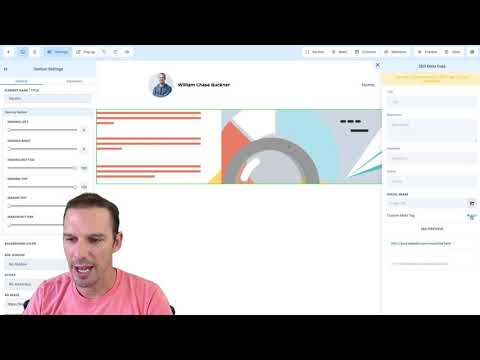
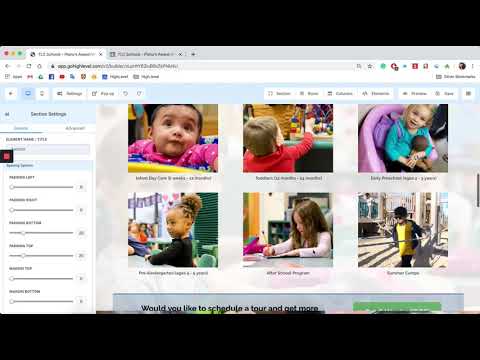
Open any funnel or website page in the editor. Click the plus icon to add an element and choose Blog Post List. Under block settings, select the category you want to display and set the number of posts per page. Save the page and preview it to confirm posts appear.
Dicas
- Upload your cover image to the media library before starting a new post so it is ready to select
- Use the Schedule option to batch write posts and release them over time without manual publishing