Workflows & Automation

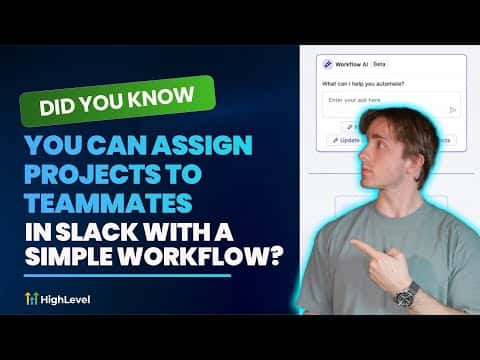
How to Assign Projects to Teammates in Slack Using GoHighLevel Workflows

GoHighLevel's Slack integration inside workflows lets you route client intake form submissions directly to the right team member as a Slack direct message or channel post. You connect Slack once under Settings and Integrations, then add the Slack action to any workflow. Dynamic user selection means the right person gets the right project without anyone manually forwarding information.

2026年6月2日に更新

6:29

概要. GoHighLevel workflows can send structured project assignments to Slack users automatically when a trigger fires, such as a contact form submission. After connecting a Slack workspace in the Integrations settings, you choose a Slack action, pick the recipient, and build the message with custom values from the trigger data. For more complex agencies, dynamic user assignment lets the workflow pick the correct team member based on the type of work requested.


よくある質問

Where do I connect Slack in GoHighLevel?

Go to Settings, then Integrations, and find Slack near the bottom of the list.

Can I send messages to a Slack channel instead of a direct message?

Yes, the Slack action offers public channel, private channel, and direct message options.

Can I dynamically pick which Slack user gets the message?

Yes, the user source setting lets you assign the recipient based on workflow data.

すでに作った人たちと、一緒に作ろう。

無料コミュニティに参加しましょう。毎週のライブ通話、最初に見るコース、あなたの言語のビルダーがいます。

Skoolに無料で参加