 1:31
1:31सारांश. GoHighLevel's LC Phone system lets you purchase local or toll-free phone numbers directly inside any sub-account without leaving the platform. You select the country, browse available numbers, choose one, and confirm. The number appears in your Phone Numbers list right away and can be configured for call forwarding, recording, A2P registration, and workflow automation.
आप क्या सीखेंगे
- Navigate to the correct sub-account before purchasing a number
- Access the Phone Numbers section inside Settings
- Choose between a local and a toll-free number
- Refresh the available number list to see different options
- Confirm the purchase and begin configuring the new number
स्टेप
Switch to the correct sub-account
Phone numbers belong to sub-accounts, not the agency level. Use the account switcher to confirm you are inside the sub-account where you want the number to live.
Open Settings and go to Phone Numbers
Scroll to the bottom of the left sidebar and click Settings. In the Settings menu, click Phone Numbers.
Click Add Phone Number
Click the blue plus button labeled Add Phone Number. In the dialog that opens, click Add Phone Number again to proceed to the number search.
Select your country and number type
Use the country dropdown to choose where you want the number to be based. Then choose between a local number and a toll-free number. Local numbers show a local area code. Toll-free numbers use an 800 prefix.
Browse and refresh available numbers
A list of available numbers appears. If none of the options fit, click Refresh to load a different set. Repeat until you find a number you want.
Purchase and configure
Click the number you want, then click Proceed to Buy at the bottom of the screen. After the purchase completes, the confirmation screen confirms the number is active. The number now appears in your Phone Numbers list ready for configuration.
टिप्स
- Toll-free numbers are better for broad campaigns where a local area code does not matter. Local numbers can see higher answer rates for local service businesses.
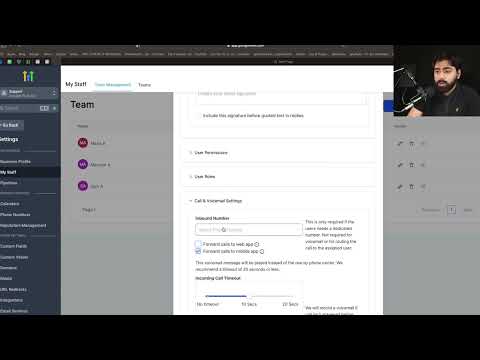
- After purchase, edit the phone number configuration to set call forwarding, recording, and a voicemail greeting before using it in workflows.
- You can purchase multiple numbers in the same sub-account, one for each campaign or use case.