 2:39
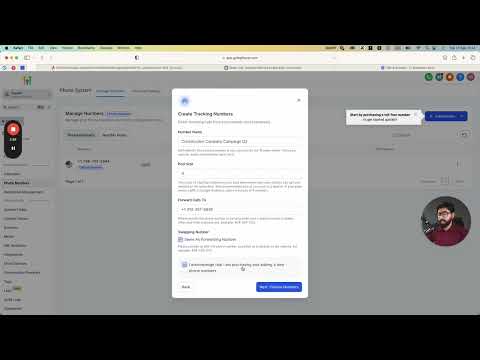
2:39सारांश. The power dialer in GoHighLevel turns a list of contacts into a sequential calling queue. A workflow adds contacts to the manual actions queue, and from there the dialer dials each number automatically using your computer's microphone. After each call you log the outcome, add notes, and the system advances to the next contact without you having to find and dial manually.
आप क्या सीखेंगे
- Understand the two components that make the power dialer work
- Build a workflow that sends contacts to the manual call queue
- Use the Assign to User action to route calls to the right team member
- Start the power dialer from the Conversations page and move through leads
- Log call outcomes and add notes without losing your place in the queue
स्टेप
Create a workflow to populate the call queue
Go to Automations and create a new workflow. Add any trigger that makes sense for your use case, such as a contact tag, a form submission, or a pipeline stage change. You can also leave it trigger-free and add contacts manually.
Add the Manual Call action
Inside the workflow, click to add an action and search for Manual Action to Call. Select it. This action creates a pending call task for each contact who passes through the workflow.
Optionally assign calls to a specific user
If multiple team members handle calls, add an Assign to User action before the Manual Call action. This routes each task to the right person so the dialer queue stays clean.
Publish the workflow and activate your trigger
Toggle the workflow to published. Then trigger it by adding the relevant tag, importing contacts, or using whichever method you configured. Contacts will appear in the manual actions queue.
Open Manual Actions on the Conversations page
Navigate to Conversations in the left sidebar and click Manual Actions. You will see all the contacts waiting for a call.
Start the power dialer
Click Start. GoHighLevel automatically dials the first contact using your computer's microphone and speakers. After the call ends, select the outcome from the dropdown: no answer, busy, voicemail, or completed.
Add notes and advance to the next lead
Type any call notes for the contact, then click Next Lead or let the system advance automatically. The dialer continues through your queue until all contacts are handled.
टिप्स
- Keep the queue focused. Add only contacts that genuinely need a call, so the session stays productive.
- The progress bar in the top-right corner shows how far through the queue you are at a glance.
- Combining the power dialer with a follow-up SMS workflow lets you reach contacts who do not pick up without any extra manual effort.