मेन्यू
RocketLauncher

Integrations & API

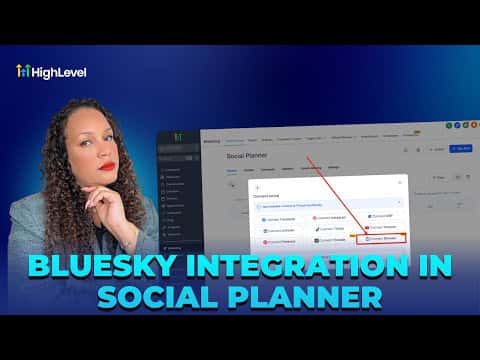
How to Integrate BlueSky with GoHighLevel Social Planner

GoHighLevel's Social Planner supports BlueSky so you can schedule posts alongside your other social channels from one place. Go to Marketing, then Social Planner, click the plus icon to add an account, enter your BlueSky username, create an app-specific password in BlueSky settings, and paste it in to complete the connection.

अपडेट: 2 जून 2026

3:13

सारांश. This tutorial covers connecting a BlueSky account to GoHighLevel's Social Planner so posts can be scheduled from inside the CRM. The connection requires generating an app-specific password in BlueSky's Privacy and Security settings rather than using the main account password. Once linked, posts can include hashtags, URLs, up to four images, or one video, and can be published immediately, scheduled for a future time, or sent for approval.

लोग जो सवाल पूछते हैं

Where do I connect BlueSky inside GoHighLevel?

Go to Marketing, then Social Planner, and click the plus icon to add an account.

Why does BlueSky require an app-specific password instead of my main password?

App passwords limit what the integration can access and protect your main account.

How many posts can I schedule on BlueSky per day through GoHighLevel?

BlueSky allows up to 100 posts within a 24-hour period.

उन लोगों के साथ बनाएँ जो पहले बना चुके हैं।

फ्री कम्युनिटी से जुड़ें: हर हफ़्ते लाइव कॉल, एक स्टार्ट-हियर कोर्स और आपकी भाषा में बोलने वाले बिल्डर्स।

Skool पर फ्री जुड़ें