 2:08
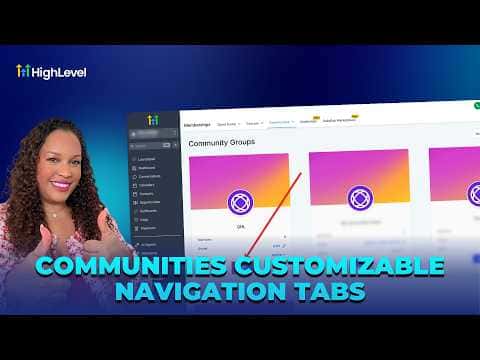
2:08सारांश. The tab visibility settings for a community group live inside that group's Settings page under Show or Hide Tabs. Discussion stays on to keep members engaged, and About stays on for discoverability. The remaining tabs, Learning, Events, Leaderboard, and Members, can each be toggled independently. If Members is disabled, admins can still see it even though regular members cannot. Changes take effect immediately after saving.
स्टेप
Navigate to your community group
From the sub-account, click Memberships on the left, then Communities at the top, then scroll to Groups and open the group you want to edit.
Open group settings
Click Settings inside the community group.
Toggle tabs on or off
Scroll to Show or Hide Tabs. Toggle Learning, Events, Leaderboard, and Members based on what your community actually uses. Discussion and About cannot be disabled.
Save and verify
Click Save Settings, then close the panel. The group header now reflects only the tabs you enabled.