Payments & Invoicing

How to Set Up Payment Dashboard Widgets and Reporting in GoHighLevel

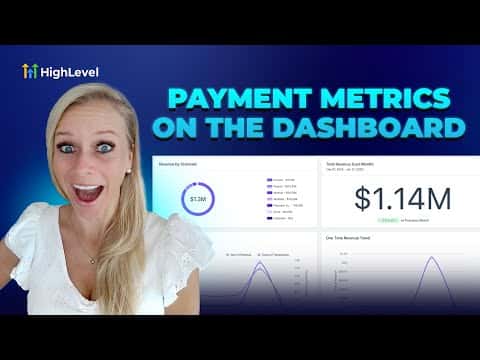
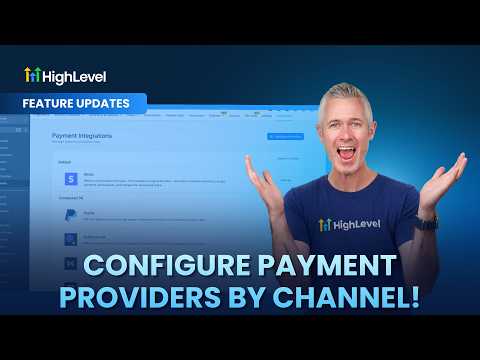
GoHighLevel dashboards support dedicated payment widgets that give you a visual read on revenue, failed charges, refunds, and subscription trends without leaving the platform. You pick a chart type, select the metric, filter by status or source, set a date range, and optionally compare against a previous period. Each widget is independent, so you can build a focused payments dashboard alongside your existing CRM view.

2 juin 2026 mis à jour

5:36

Résumé. Payment widgets in GoHighLevel turn raw transaction data into readable charts on a custom dashboard. You can track total revenue, recurring versus one-time trends, payment success and failure rates, coupon redemptions, invoice payment rates, and refunds, all with configurable date ranges and comparison periods. Building a dedicated payments dashboard gives you a quick financial snapshot without running manual reports.
Les questions que les gens posent

Where do I add payment widgets in GoHighLevel?

Go to Dashboards, create or edit a dashboard, click Add Widget, scroll to Payments.

Can I compare this month's revenue to last month in the same widget?

Yes. Set the date range and choose a comparison period in the widget settings.

Can I filter a widget to show only live-mode transactions?

Yes. Add a condition for payment mode equals live in the widget's conditions panel.

What chart types are available for payment widgets?

Numeric, donut, bar, horizontal bar, line, and table.

Construisez-le avec des personnes qui l'ont déjà fait.

Rejoignez la communauté gratuite : des appels en direct hebdomadaires, un cours Commencez ici et des constructeurs dans votre langue.

Inscrivez-vous gratuitement sur Skool