Payments & Invoicing

How to Set Up Payment Dashboard Widgets and Reporting in GoHighLevel

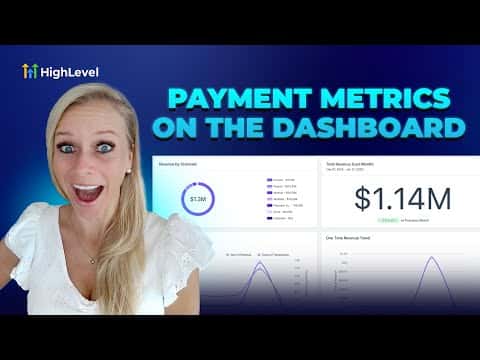
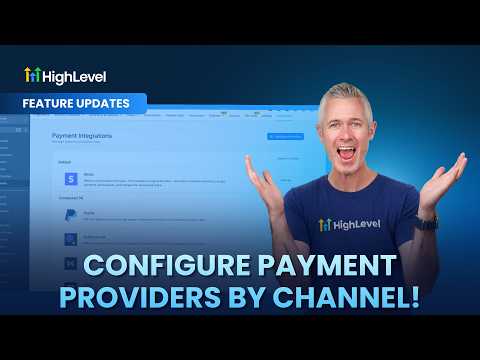
GoHighLevel dashboards support dedicated payment widgets that give you a visual read on revenue, failed charges, refunds, and subscription trends without leaving the platform. You pick a chart type, select the metric, filter by status or source, set a date range, and optionally compare against a previous period. Each widget is independent, so you can build a focused payments dashboard alongside your existing CRM view.

Aktualisiert 2. Juni 2026

5:36

Zusammenfassung. Payment widgets in GoHighLevel turn raw transaction data into readable charts on a custom dashboard. You can track total revenue, recurring versus one-time trends, payment success and failure rates, coupon redemptions, invoice payment rates, and refunds, all with configurable date ranges and comparison periods. Building a dedicated payments dashboard gives you a quick financial snapshot without running manual reports.
Fragen, die Menschen stellen

Where do I add payment widgets in GoHighLevel?

Go to Dashboards, create or edit a dashboard, click Add Widget, scroll to Payments.

Can I compare this month's revenue to last month in the same widget?

Yes. Set the date range and choose a comparison period in the widget settings.

Can I filter a widget to show only live-mode transactions?

Yes. Add a condition for payment mode equals live in the widget's conditions panel.

What chart types are available for payment widgets?

Numeric, donut, bar, horizontal bar, line, and table.

Bauen Sie es mit Leuten auf, die es bereits getan haben.

Treten Sie der kostenlosen Community bei: wöchentliche Live-Anrufe, ein Start-hier-Kurs und Builder in Ihrer Sprache.

Kostenlos anmelden unter Skool