 3:20
3:20Resumen. This tutorial shows how to enable and configure the Ring All setting on a GoHighLevel phone number so that inbound calls alert multiple team members at once. Setup involves editing the phone number's configuration to add up to eight users, then adjusting each user's call-forwarding preference between the web app and the mobile app.
Lo que aprenderás
- How to enable Ring All on a GoHighLevel phone number
- How to add up to eight users to the ring group
- The difference between forwarding calls to the web app versus the mobile app
- How to assign an inbound GoHighLevel number to a user who lacks their own
- What happens on the other devices when one agent answers
Pasos
Go to Settings and then Phone Numbers
Inside the sub-account, click Settings in the left nav and select Phone Numbers from the menu.
Open the number's configuration
Find the number you want to configure, click the three-dot menu on the right, and select Edit Configuration.
Enable Ring All
Scroll to the bottom of the configuration panel. Toggle on 'Ring incoming calls to all users'. A user selector will appear.
Add up to eight users
Click the user selector and add each team member who should receive inbound calls. You can add up to eight. Save when done.
Set each user's call destination
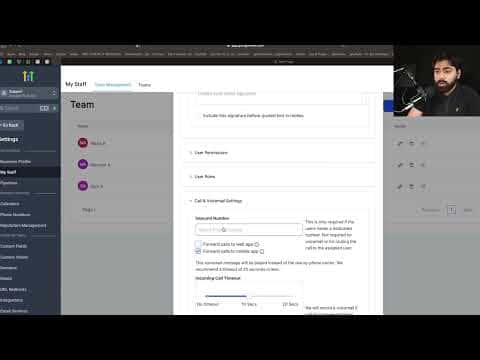
Go to My Staff, click the pencil icon for a user, scroll to Call and Voicemail Settings, and choose between Forward Calls to Web App or Forward Calls to Mobile App. If both are checked, the web app takes priority.
Assign a GoHighLevel number to users without one
Still in the Call and Voicemail Settings panel, use the inbound number selector to assign a sub-account number to users who do not have a personal number. Save each user.
Consejos
- If your agents are primarily in the field, select Mobile App so calls reach them on their phones even when they are away from a computer.
- Ring All creates a competitive dynamic on sales teams. Make sure every agent has their preferred call destination configured before you activate it.