Forms & Surveys

How to Format Notes and Tasks in GoHighLevel with Rich Text

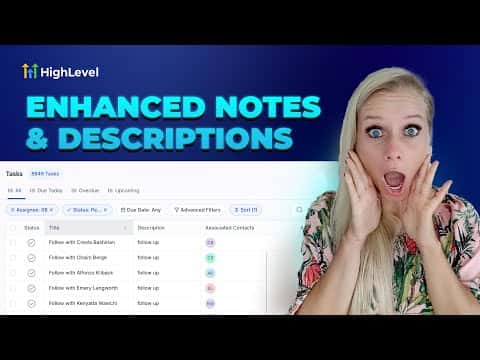
GoHighLevel's notes and task description fields support rich text formatting, so you can use bold, italics, underlines, color, hyperlinks, and bullet or numbered lists to keep team documentation clear. The same editor appears in the Opportunities section, the Contacts section, and the Tasks section across both areas.

Actualizado el 2 de junio de 2026

2:34

Resumen. GoHighLevel supports rich text in notes and task descriptions across Opportunities and Contacts. The formatting toolbar lets you apply bold, italic, underline, strikethrough, text color, hyperlinks, and bullet or numbered lists. Completed list items can be checked off inline, giving the next team member a clear picture of what has already been handled.


Preguntas frecuentes

Where can I use rich text formatting in GoHighLevel?

In the Notes and Tasks sections inside both Opportunities and Contacts.

What formatting options are available in the rich text editor?

Bold, italic, underline, strikethrough, text color, hyperlinks, bullet lists, and numbered lists.

Can I check off completed items in a task list?

Yes. Click the checkbox next to any list item to mark it done inside the description.

Constrúyelo con gente que ya lo hizo.

Únete a la comunidad gratis: llamadas en vivo cada semana, un curso para empezar y gente que construye en tu idioma.

Únete gratis en Skool