 6:57
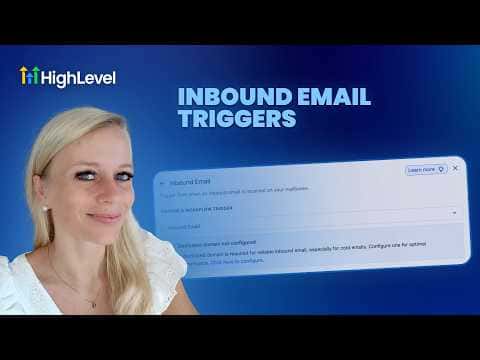
6:57Resumen. GoHighLevel's inbound email trigger can pick up emails from unknown senders and existing contacts alike, including replies to previous threads. It requires a dedicated sending domain configured under Settings, Emails, and works best with LC or Mailgun. Filters let you route by destination mailbox, CC recipient, subject line keywords, or whether the sender is tagged in your CRM, and advanced settings prevent the trigger from firing repeatedly on the same conversation thread.
Pasos
Confirm your dedicated sending domain is set up
Go to Settings, then Emails, and verify a dedicated domain is configured. Without this the trigger will not capture all inbound messages.
Add the inbound email trigger to a workflow
Open Automations, Workflows, open or create a workflow, click Add Trigger, and search for Inbound Email. Select it from the list.
Configure filters to narrow the scope
Add filters such as Email Sent To a specific mailbox address, subject line contains a keyword, or contact has a particular tag. Use multiple filters together to avoid unintended overlap with other workflows.
Enable advanced settings to prevent duplicate fires
Turn on the advanced setting that stops the trigger from re-firing on every reply within the same thread, so your team is only notified once per new conversation.