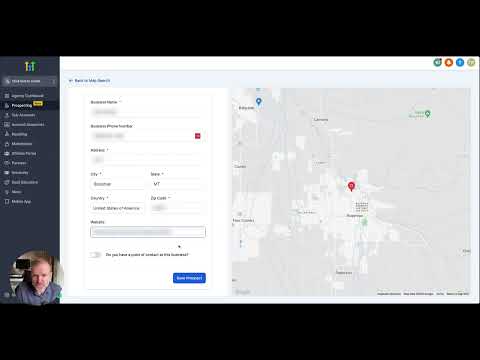
CRM, Contacts & Lead Gen

How to Import Contacts and Opportunities via CSV in GoHighLevel

GoHighLevel lets you bulk import contacts and pipeline opportunities from a CSV file in one workflow. Download the sample file to format your data correctly, map each column to the right CRM field, choose your deduplication settings, and kick off the import. Progress tracks in real time under Bulk Actions so you can catch any errors before they affect your pipeline.

Actualizado el 2 de junio de 2026

4:05

Resumen. Bulk importing a contact list into GoHighLevel takes a formatted CSV and a few mapping decisions. The import wizard walks through file upload, opportunity creation mode (create, create-and-update, or update only), contact deduplication preferences, and column-to-field mapping. Once the import runs, a live progress view shows successes, warnings, and errors, and you can optionally add imported contacts to a workflow or tag them for later filtering.

Preguntas frecuentes

Where do I start a CSV import in GoHighLevel?

Go to Opportunities, choose your pipeline, then click Import in the top right corner.

Can I import both contacts and deals at the same time?

Yes. Select the combined contacts and opportunities option in the import wizard.

What happens if a contact already exists in the CRM?

Deduplication settings (from Business Profile) determine whether the record is created fresh or merged with the existing one.

Constrúyelo con gente que ya lo hizo.

Únete a la comunidad gratis: llamadas en vivo cada semana, un curso para empezar y gente que construye en tu idioma.

Únete gratis en Skool