SaaS Mode & Agency

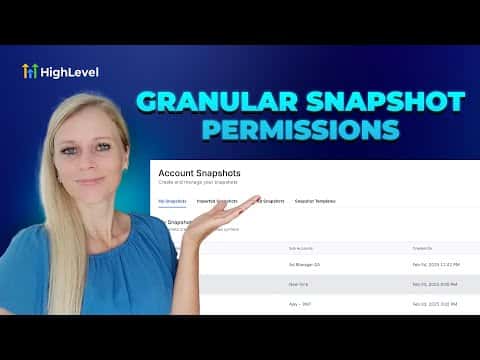
How to Adjust Snapshot Permissions for Admins in GoHighLevel

GoHighLevel lets agency owners control exactly which snapshot actions each admin can perform. You can allow or block view, create, edit, push, refresh, share, import, and delete permissions individually. This is useful when only one team member should be responsible for managing and pushing snapshots, keeping your agency templates protected from accidental changes.

Atualizado em 2 de junho de 2026

1:13

Resumo. The Team settings inside a GoHighLevel agency include granular snapshot permissions for each admin. Agency owners can toggle individual capabilities such as view, create, edit, push, share, import, and delete on a per-user basis. Restricting these permissions protects snapshot integrity when only specific team members should have access to push or modify agency templates.

Passos

  1. Open Team settings

    Log into your agency account, click Settings at the bottom left, then click Team on the left sidebar.

  2. Filter to agency admins

    In the role dropdown at the top of the team list, select Agency and Admins to show only admin-level users.

  3. Edit the admin's permissions

    Click the edit icon on the right side of the admin's row, then go to Roles and Permissions. Scroll down to the Snapshots section and toggle each permission on or off as needed. Click Save when done.
Perguntas frequentes

Can I remove push snapshot access without removing other admin rights?

Yes. Each snapshot permission is toggled individually without affecting other roles.

Where exactly is the Snapshots permission section?

Inside the admin's Roles and Permissions tab, scroll down to find Snapshots.

Crie com quem já criou.

Entre na comunidade gratuita: lives semanais, um curso para começar e criadores no seu idioma.

Entre de graça no Skool