Funnels & Websites

How to Update the PHP Version on a WordPress Site in GoHighLevel

GoHighLevel lets you change the PHP version running on your hosted WordPress site directly from the platform, without touching a server control panel. Keeping PHP current improves security, speeds up page loads, and ensures compatibility with modern plugins. The whole process takes a few clicks inside Advanced Settings.

Atualizado em 2 de junho de 2026

1:30

Resumo. WordPress sites hosted through GoHighLevel run on a PHP version you can select from within the platform. Updating PHP through the Advanced Settings panel enhances site security, boosts performance, and prevents plugin compatibility issues. The change takes effect after a quick confirmation step and does not require any external server access.

Passos

  1. Open your WordPress site settings

    Go to Sites on the left, then click WordPress at the top. Find the site you want to update.

  2. Navigate to Server Settings

    Click Advanced Settings for that site, then click Server Settings.

  3. Select the PHP version

    Scroll to the bottom of the Server Settings screen and choose the PHP version you want from the drop-down.

  4. Confirm the update

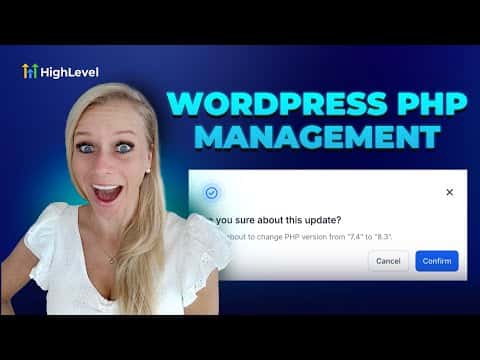
    Click Confirm, then confirm again in the pop-up. A green notification confirms the PHP version has been updated.

Perguntas frequentes

Will updating PHP break my existing plugins?

Most modern plugins support current PHP versions. Test after updating to confirm.

Why does PHP version matter for a WordPress site?

PHP is the scripting language WordPress runs on. Newer versions are faster and more secure.

Crie com quem já criou.

Entre na comunidade gratuita: lives semanais, um curso para começar e criadores no seu idioma.

Entre de graça no Skool