 8:07
8:07概要. This tutorial walks through connecting GoHighLevel to Facebook's Conversions API via LeadConnector to improve ad targeting and reduce cost per lead. It covers creating a pixel in Facebook Events Manager, mapping form fields in GoHighLevel integrations, and building the two workflows that work together to pass conversion data back to Facebook when a deal closes.
学べること
- Create a Facebook pixel connected to GoHighLevel via the LeadConnector partner integration
- Map Facebook lead form fields to GoHighLevel contact fields for accurate data sync
- Build a workflow that creates or updates an opportunity when a Facebook lead form is submitted
- Build a second workflow that fires a Conversions API event when an opportunity is marked as won
- Understand why closing the feedback loop to Facebook improves lead quality and reduces costs
ステップ
Create a pixel in Facebook Events Manager
Go to business.facebook.com, open All Tools, then Events Manager. Click Connect Data Source, choose CRM, and proceed. Name the new pixel and continue.
Connect via LeadConnector
In the partner connection step, search for 'LeadConnector' and select it. Before clicking 'Go to Partner', you need to complete the GoHighLevel side first.
Map form fields in GoHighLevel
In your GoHighLevel sub-account, go to Settings, then Integrations. Connect your Facebook ad account if not already done. Open 'Facebook Form Field Mapping' and verify that your form fields match the correct contact fields. Click Update to save.
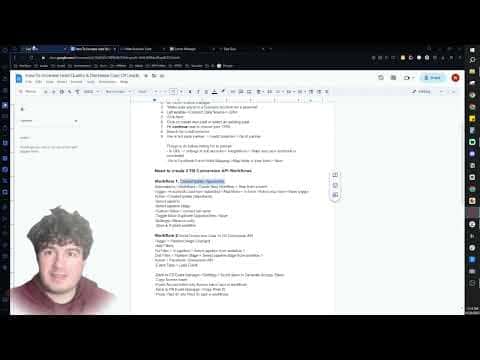
Build Workflow 1: Create opportunity on lead form submission
Create a new workflow. Set the trigger to 'Facebook Lead Form Submitted', optionally filtering by a specific form. Add a 'Create/Update Opportunity' action, select your pipeline and stage, set the opportunity name to the contact's full name using a custom value, assign a lead value if relevant, and set status to Open. Enable Allow Re-entry in Settings and publish.
Build Workflow 2: Send conversion when opportunity closes
Create a second workflow. Set the trigger to 'Pipeline Stage Changed'. Add filters for your specific pipeline and for the stage that represents a closed deal. Add the 'Send Conversion to Facebook Conversions API' action and configure the event type. Publish the workflow.
Test the full path
Submit a test lead through your Facebook lead form. Confirm the opportunity appears in the correct pipeline stage. Then move it to the closed-won stage and verify the conversion event fires in Facebook Events Manager.
ヒント
- Set Allow Re-entry on Workflow 1 so repeat leads from the same contact do not get skipped.
- Assigning a realistic lead value in the opportunity helps Facebook optimize ad delivery for higher-value prospects.
- Facebook Events Manager shows a real-time event test tool so you can confirm conversions are arriving before spending ad budget.