 6:03
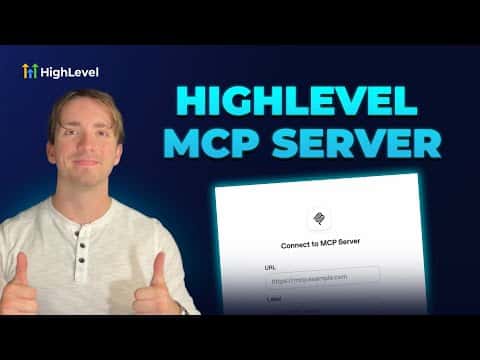
6:03概要. This tutorial demonstrates how to connect an external AI agent to GoHighLevel using the platform's native MCP server. It covers navigating the available tools list in the help documentation, creating a private integration token with the right permission scopes inside a sub-account, and entering the server URL and token into an AI platform such as OpenAI's assistant builder. The result is an AI agent that can read, create, and update GoHighLevel data in real time.
学べること
- Understand what tools the GoHighLevel MCP server exposes, from contacts to opportunities to messages
- Create a private integration token with the correct permission scopes
- Find the MCP server URL from the GoHighLevel help documentation
- Connect the server URL and token to an external AI platform
- Confirm the connection is active and verify which sub-account data the agent can access
ステップ
Review the available tools in the help doc
Open the GoHighLevel MCP Server help article. Scan the full list of tools to understand what data the agent will be able to access, including contacts, calendars, conversations, tags, pipelines, opportunities, and custom fields.
Open your sub-account settings and create a private integration
Inside your sub-account, scroll down to Settings and find Private Integrations at the bottom. Click Create New Integration, give it a name such as 'MCP Server', and click Next.
Select the required permission scopes
Check the scopes your agent needs. At minimum, select view and edit for contacts, conversations, conversation messages, opportunities, calendars and events, locations, payments, custom fields, and forms. Then click Create.
Copy the API token
After creation, an API token is shown once. Copy it immediately and store it somewhere safe. Do not share it with anyone you do not trust, as it grants access to your sub-account data.
Add the MCP server to your AI platform
In your AI platform (such as OpenAI's assistant builder), find the area for integrations or tools and add a new MCP server. Paste the server URL from the help doc and your API token in the authentication field, then connect.
Verify the connection
After connecting, your AI platform should display the list of tools that GoHighLevel has made available. Confirm they match the scopes you selected, then test with a simple query such as fetching a contact or checking a calendar slot.
ヒント
- Only grant the scopes your agent actually needs. Fewer permissions reduce the risk if a token is ever exposed.
- If your platform uses a config file such as cursor's JSON setup, copy the server URL from the help doc code snippet directly.
- Store the API token in a password manager right after creation since it is shown only once.