 6:20
6:20概要. This tutorial covers creating a subscription product with optional free trial in Stripe's test mode, then connecting that Stripe account to a GoHighLevel sub-account via API keys. It shows how to select the Stripe product inside a GoHighLevel funnel step and set or override the trial period for that product. The workflow applies to any recurring billing scenario including coaching programs, memberships, and retainers.
学べること
- Create a subscription product with a recurring price in Stripe test mode
- Set a free trial period in Stripe and understand that GoHighLevel can override it
- Find and copy the Stripe publishable key and secret key
- Paste both API keys into GoHighLevel under Settings, Integrations
- Select a Stripe product when configuring a funnel order form step
- Trigger a webhook after a successful purchase to automate account provisioning
ステップ
Switch Stripe to test mode
Log into your Stripe dashboard and toggle on 'View test data' so you can build and test without real charges. Anything you create here can be duplicated in live mode once you are ready.
Create a product in Stripe
Go to Products and click Add product. Enter a clear product name, which is what appears on customer receipts and bank statements. Set your price as a recurring charge, choose the billing interval, and optionally add a free trial period.
Copy your Stripe API keys
Navigate to Developers, then API keys inside Stripe. Copy the publishable key and the secret key. Make sure you are copying the test keys while you are in test mode.
Paste the keys into GoHighLevel
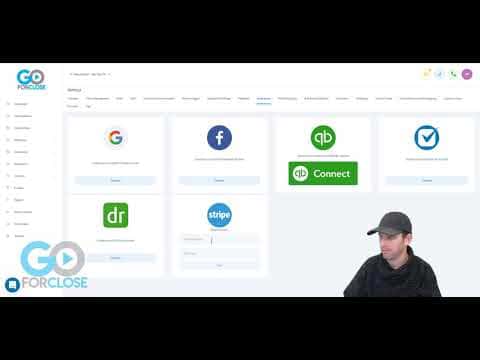
Inside your GoHighLevel sub-account, go to Settings and then Integrations. Find the Stripe section and paste the publishable key and the secret key into their respective fields, then click Save.
Build a funnel and add an order form step
Create a funnel or open an existing one. Add a page and set its step type to include a two-step order form. Save the page so it exists before you configure the product.
Attach the Stripe product to the funnel
Inside the funnel step settings, go to Products. Click Add Product, give it a name, then choose your Stripe plan from the dropdown. The dropdown is populated from your connected Stripe account. Override the trial period here if you want a different length than what Stripe has.
Automate post-purchase actions
Set up an automation trigger on the funnel submission event with submission type set to Sale. Use a webhook action to pass the purchase data to an external tool or to GoHighLevel's own automation to provision access, send a welcome email, or create a sub-account.
ヒント
- Always build and test in Stripe's test mode first. Duplicate the product in live mode only when the full flow works end to end.
- The trial period you set in Stripe can be overridden inside GoHighLevel at the product level, so you do not need to create a separate Stripe product just to test a different trial length.
- Name your Stripe product something your customer recognizes, since it appears on their bank statement.